
SMS Templates
Create and Configure SMS Template
Create and configure SMS templates by defining template details, DLT settings, message content, encoding preferences, and SMS credit usage.
Create an SMS External Template in Fyno and submit it for DLT approval. Creating one takes four steps:
Step 1: Create the template
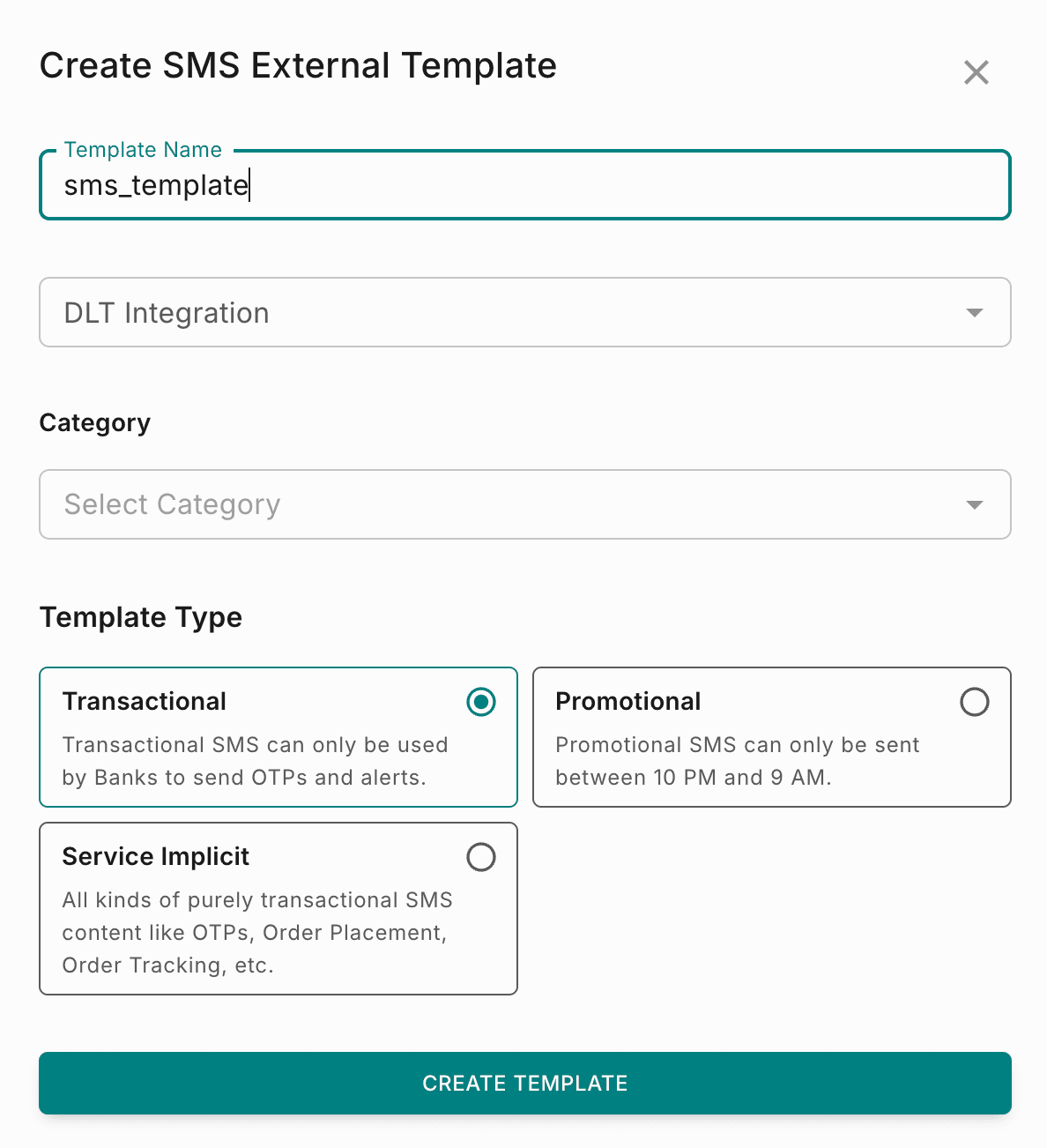
Navigate to Templates → External → SMS, then click Create. Fill in the dialog and click Create Template.
| Field | What to enter |
|---|---|
| Template Name | A unique name to identify the template in Fyno. |
| DLT Integration | The DLT account to register the template in. |
| Category | The SMS use case, as specified on the DLT platform. |
| Template Type | The template type, as defined by the DLT provider. See the table below. |
| Template type | What it's for |
|---|---|
| Transactional | Can only be used by banks to send OTPs and alerts. |
| Promotional | Promotional content, which can only be sent between 10 PM and 9 AM. |
| Service Implicit | All kinds of purely transactional content, such as OTPs, order placement and order tracking. |
For use cases and DLT-compliant message formats for each type, see Template Types.
Step 2: Write the message
The editor has the template form on the left and a live SMS preview on the right. The fields are the same for every template type.
Enter the header
Enter the sender header. It must match one of the DLT-registered headers in your DLT integration, for example FYNOIO.
Write the SMS content
Enter the message body. To add a variable, click + Add Variable instead of typing it. Variables are numbered in the order you add them: {{1}}, {{2}}, {{3}} and so on.
A panel next to the content box updates as you type:
| Stat | What it shows |
|---|---|
| Encoding | The encoding applied to the message, such as GSM-7. |
| 1 Credit equals | How many characters make up one SMS credit at this encoding. |
| Credits Used | The estimated number of credits the message uses. |
| Characters Used | The total number of characters in the message. |
Reduce credits with Fyno AI (optional)
If the message uses more than 1 credit, a banner appears below the content box. Click Reduce Credits to shorten the message with Fyno AI.
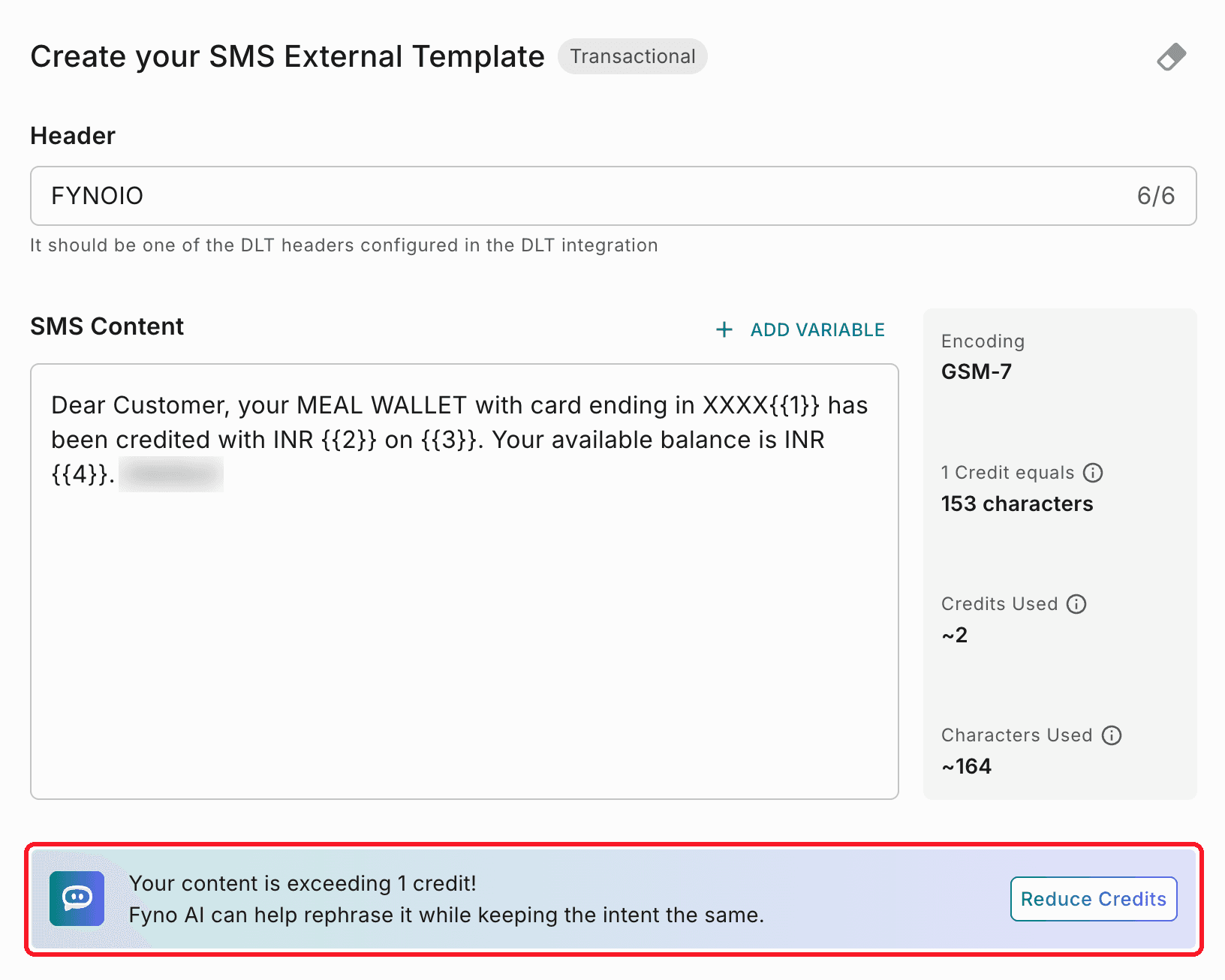
Rephrased content counts as new content for DLT. Submit the template for approval again before you use it.
Add sample values
The Sample for Body Content panel below the content box has one field for each variable. The DLT provider uses these values to review the template.
- Every sample value is required. An empty field shows Sample value is required.
- Use sample values only. Don't enter real customer data.
- An icon in each field shows the type of value it expects:
| Icon | Type | Example |
|---|---|---|
| Tt | Text | Order ID, name, date |
| # | Numeric | Amount, quantity |
| 🔗 | URL | Tracking link, callback link |
Templates with no variables, such as some Service Implicit messages, don't show this panel.
Turn on Unicode (if needed)
Select Unicode Message if the content or variable values may contain regional languages or other non-English characters.
If a message isn't marked as Unicode but contains Unicode characters, it may not be delivered correctly. SMS providers may charge more for Unicode messages.
Step 3: Check the preview and credits
The preview on the right shows how the SMS appears on a phone, with the header as the sender name. Use it to check formatting, variable placement and message length.
The number of characters per SMS depends on the encoding:
| Number of SMS | Text (GSM-7) characters | Unicode characters |
|---|---|---|
| 1 | 160 | 70 |
| 2 | 306 | 134 |
| 3 | 459 | 201 |
| 4 | 612 | 268 |
| 5 | 765 | Not applicable |
Step 4: Save or send to the provider
Use the buttons at the top of the editor:
| Button | What it does |
|---|---|
| Save As Draft | Saves the template in Fyno without sending it to the DLT provider. |
| Send To Provider | Submits the template for DLT approval. |
For the differences and template statuses, see Save as Draft vs Send for Approval.
The page header shows who created the template and when, its current status (for example, Sent to provider for approval), and a history icon to view earlier versions.
If template approvals are enabled in your workspace, Send To Provider needs an additional approval step. Choose from your designated approvers, who review the template before it's sent to the provider. See Create an Approval Request for the steps.