

Supported Databases
MsSQL
Connect a Microsoft SQL Server database to Fyno Connect, configure connection settings, validate access, and create cohorts from your database data.
Connect your Microsoft SQL Server (MsSQL) database to Fyno Connect with your server details and credentials. Once connected, you can build cohorts directly from the data in your database.
Connect your MsSQL database
Open MsSQL from Databases
Go to Databases and click MsSQL. The Add a MsSQL database pop-up opens.
Enter the connection details
Fill in the following fields:
- Custom Name: A name to identify this connection in Fyno Connect.
- Server Name: The name or address of your SQL Server.
- Database Name: The name of the database you want to connect.
- Port: The port your SQL Server listens on.
- User Name: The username used to access the database.
- Password: The password for that user.
All fields except Custom Name are masked by default. Click the eye icon on a field to view its value.
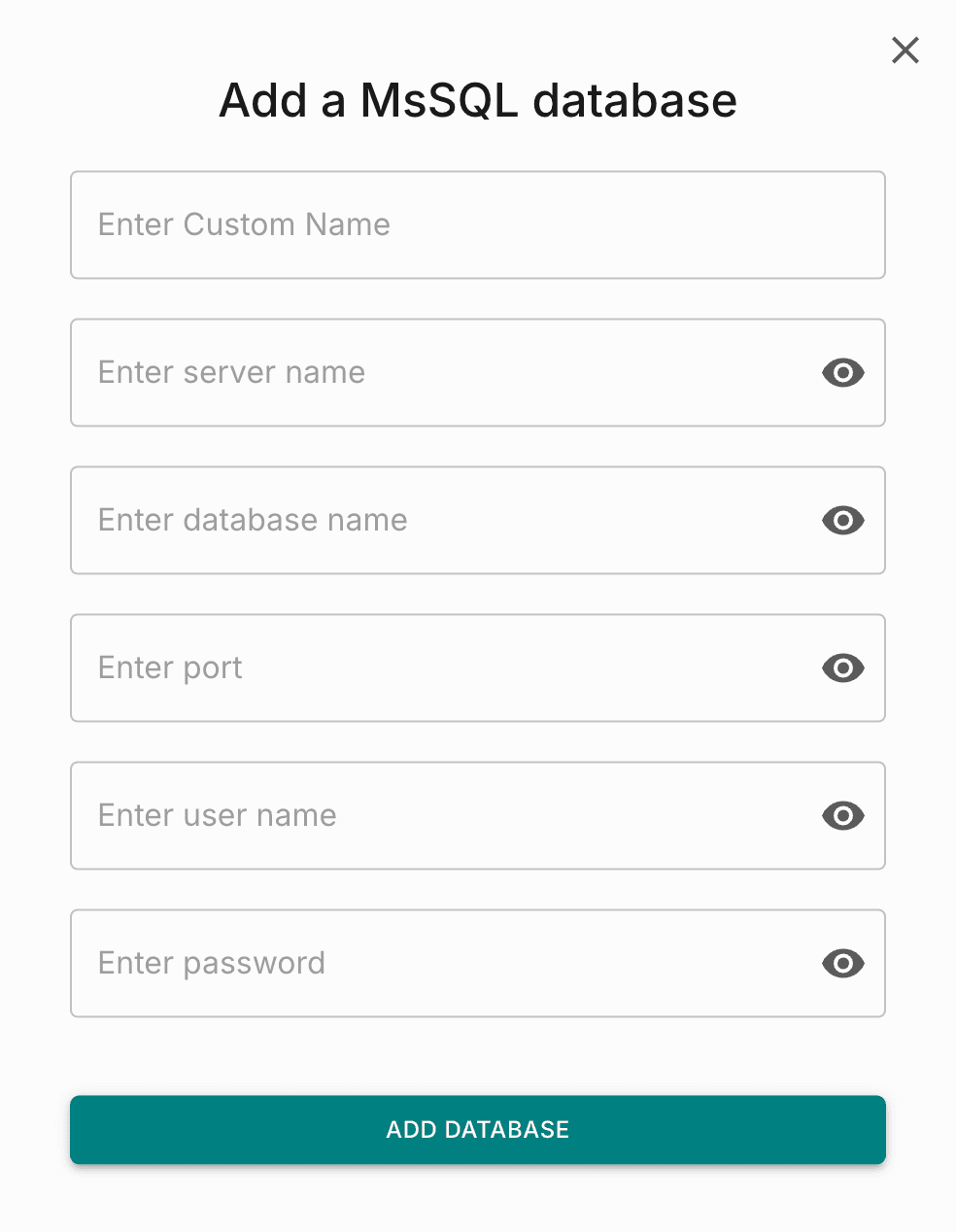
Add the database
Click Add Database. Fyno tests the connection and saves it once the test succeeds. The database then appears under Connected DBs on the same page.