Sent Logs
Debugging Notification Failures with Sent Log Details
Deep dive into Fyno log components like Trace, Summary, and Placeholders. Understand the platform-wide notification delivery lifecycles across email, SMS, and messaging apps.
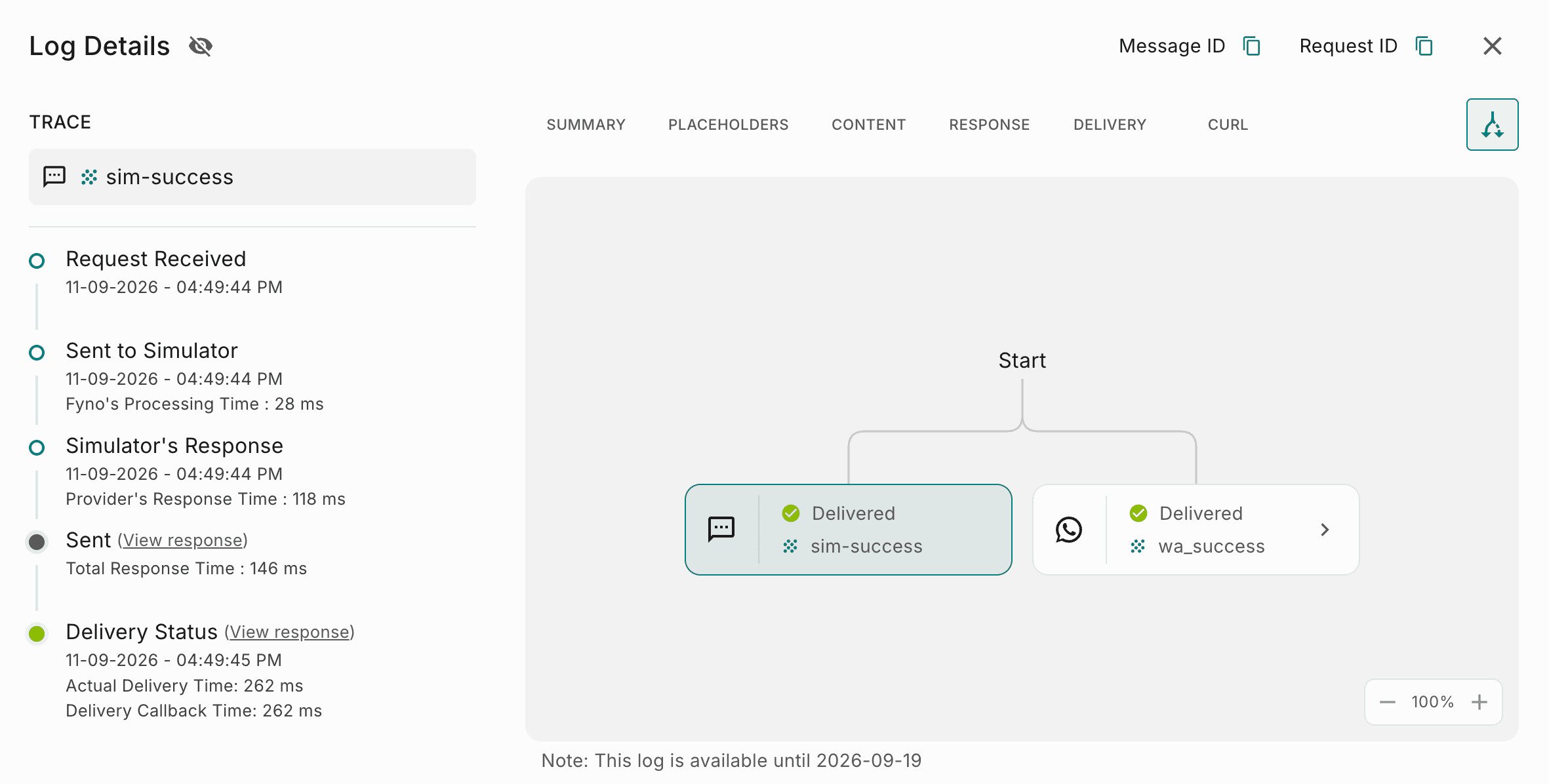
Log Details is the pop-up that opens when you click a notification log on the Sent Logs page. It brings together everything about that log, organized into these areas:
| Area | What it shows |
|---|---|
| Trace | Each hop the notification took, the time each hop took, and the final status. |
| Summary tab | Key details of the log, such as the Message ID, channel, provider, and template. |
| Placeholders tab | The placeholders, or replaceable parameters, in the template that was used. |
| Content tab | The content sent in the notification, such as the message text or the email subject and body. |
| Response tab | The exact response received from the provider, including any error code. |
| Delivery tab | The delivery report received from the provider, for providers that share delivery status. |
| Notification Route | The full path the notification took across channels and providers. |
Debugging Notification Hops with Log Trace
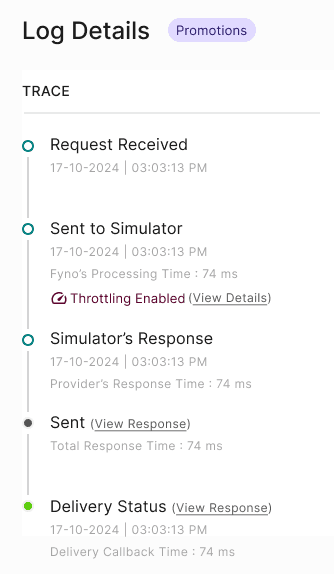
The Trace appears on the left side of the Log Details pop-up. It summarizes each hop the notification took, how long each hop took, the total time, and the final status of the notification.
| Hop | What it shows |
|---|---|
| Request Received | The time the API was triggered and Fyno received the request for processing. |
| Sent To provider name | The date and time the request was sent to the provider, and how long Fyno took to process it. The provider shown depends on the routing and notification event that were triggered. If integration-level throttling delayed the notification, this hop also shows Throttling Enabled. Click View Details next to it to see each delayed attempt. |
| Provider name's Response | The date and time the provider's response was received, and how long the provider took to respond. |
| Final Status | The final status of the notification, such as Success, and the total time taken for its entire lifecycle. |
| Delivery Status | The time the provider shared the delivery status. This hop appears only when the provider sends a delivery response. |
In the example above, the notification was sent through the Simulator, so the Trace shows Sent to Simulator and Simulator's Response. The Sent to Simulator hop shows Throttling Enabled, which means Fyno held the notification before submitting it to the provider. The notification was then sent, and the Delivery Status hop shows when the delivery status was received.
Clicking View Details next to Throttling Enabled opens the Throttling details panel, which lists each delayed attempt with its date and time and the total number of attempts.
Reviewing Notification Trace and Summary Logs
When you open Log Details, the Summary tab is shown first, next to the Trace. It lists the key details of the log.
| Field | What it shows |
|---|---|
| Message ID | The unique identifier of the message sent through a specific provider. If a notification fails with one provider and is sent through a failover provider, each attempt gets its own log and Message ID. |
| Request ID | The unique identifier of the request triggered through Fyno. Every log created by the same request shares one Request ID, even when the notification goes through multiple providers. |
| Channel | The channel used for the notification: Messaging (SMS), WhatsApp, Email, Chat, or Push. |
| Provider Name | The provider used to send the notification you're viewing. This can vary with your routing and notification event configuration. |
| Destination | The recipient's details, such as a phone number, email ID, or chat channel ID. |
| Date | The date you triggered the notification through the Fyno App. |
| Time | The time you triggered the notification through the Fyno App. |
| Integration Custom | The name you gave the integration when you created a provider under a channel. |
| Routing | The routing you created under the Integrations section. |
| Template | The name of the template used in the notification, created under the Templates section. |
| Notification Event | The name of the notification event that triggered the notification and created this log, created under the Notification Events section. |
| Retry | The attempt number of the notification within the notification event, starting at 0. |
For example, if a notification event has 2 providers configured, and the notification fails with the first provider but is delivered by the second, there are 2 logs. The failed attempt shows Retry as 0, and the delivered attempt shows Retry as 1. To see both attempts together, open the Notification Route.
Request ID and Message ID are linked!
A Message ID starts with the Request ID of the request that created it. Its last 4 characters are unique to each provider.Debugging Template Placeholders in Logs
The Placeholders tab shows the details of all the placeholders, or replaceable parameters, in the template used to trigger the notification event.
No details in Placeholders?
If the Placeholders tab is empty, the notification's content had no replaceable parameters to display.content omitted due to size, because Fyno doesn't store content larger than 1 MB.Understanding Log Content Details
The Content tab shows the details of the content sent in the notification. What you see depends on the channel:
| Detail | What it shows |
|---|---|
| Message content | The static text of the message, along with any replaced parameters. |
| Type of Message | The message type, such as Unicode, plain text, or a media type, depending on the content and channel. |
| Template ID | The Template ID, for SMS notifications that have one. |
| Subject | The subject line, for email notifications. |
| Body | The content of the email body, for email notifications. |
content omitted due to size, because Fyno doesn't store content larger than 1 MB.Analyzing Provider API Responses in Logs
The Response tab shows the exact response Fyno received from the provider for the notification. This includes any error code, the final status of the notification, and the message content and trace details.
Tracking Notification Delivery Status in Logs
The Delivery tab shows the delivery response Fyno received from the provider used to send the notification. Because this information comes from the provider, the tab is available only for providers that send delivery status.
Providers fall into three groups, depending on whether and how they share delivery status.
Delivery Status Sent, No Extra Configuration
These providers share the delivery status without any webhooks or callbacks configured on their end.
| Channel | Providers |
|---|---|
| Messaging (SMS) | Exotel, Kaleyra Global, Kaleyra.io, MessageBird, Plivo, Twilio, ValueFirst |
| Freshchat, MessageBird, Twilio, ValueFirst | |
| InApp | InApp |
| Push | Expo, FCM, Mi Push, OneSignal |
Delivery Status can be Sent, Configuration Needed
These providers share the delivery status once they're configured to do so. After that, the Delivery tab shows up in logs.
| Channel | Providers |
|---|---|
| Messaging (SMS) | Gupshup, Karix, MSG91, RouteMobile, Syniverse |
| Connectly, Kaleyra.io, Gupshup Enterprise, Meta (by Facebook) | |
| Mailchimp (Mandrill), Mailgun, Netcore, PostMark, SendGrid, SES |
Delivery Status Not Sent, Configuration not available
These providers can't share the delivery status, so the Delivery tab isn't shown for them.
| Channel | Providers |
|---|---|
| AiSensy | |
| Gmail, Outlook | |
| Chat | Slack, Teams (by Microsoft) |
Notification Route
To see the full path a notification took across channels and providers, click the route icon (the branching arrow) to the right of the tabs in the Log Details pop-up. This opens the Notification Route, which displays the path as a flow of blocks that begins at Start. Each block represents one attempt to send the notification through a channel and integration.
 For example, if a notification is sent on WhatsApp but isn't delivered, and your route then sends it by email, the Notification Route shows two blocks: a WhatsApp block marked Undelivered, connected to an email block marked Delivered. You can open each block to see what happened during that attempt.
Reading Blocks and Connectors
Each block shows its channel, the integration used, and the status of that attempt, such as Delivered or Undelivered. Blocks are joined by connectors, and each connector's label shows why the notification moved on to the next block.
| Connector label | What it means |
|---|---|
| on success | The attempt in the previous block met the success criteria set in your route. |
| on failure | The attempt in the previous block failed or didn't meet the success criteria set in your route. |
| wait for | The wait time configured in your route, such as how long Fyno waits for a delivered or read status before following the success or failure path. It can appear alongside an on success or on failure label. |
To learn how success criteria and wait times are set up, see Omnichannel Routing.
Clicking on a Block to See Log Details
Click a block in the route to view details of that log. The block you're viewing is highlighted, and its channel and integration appear at the top of the Trace. The Trace and the tabs, such as Response and Delivery, then show the details for that attempt.