Logs
Tracking and Exporting Sent Notification Logs
Track every notification sent from Fyno. Filter sent logs, interpret delivery statuses, and export reports, including DND Period Logs.
Sent logs are where we help you track each and every notification sent from Fyno. They give you a detailed view of what happened to each of your requests, so you can analyze your sent notifications and continuously improve your communication strategy.
This guide covers the logs visible on the Fyno platform, how to filter them, and what each column contains. To open your logs, select Sent Logs from the left navigation menu.
Logs stay on this page for 7 days by default
The exact period depends on your workspace's Data Retention setting. To review older notifications, request a report.
Logs
The logs visible on the Sent Logs page give you a chronological overview of the latest interaction activity occurring on your Fyno account.
When you review your logs, the primary indicator is the Status indicator. This flag marks exactly where your request stands within the system lifecycle:
| Status | Description |
|---|---|
| Attempted | Message request was successfully validated by Fyno and routing logic has been initiated toward the provider. |
| Sent | Message request was processed successfully by the provider and dispatched into the delivery network. |
| Dropped | Message was dropped internally due to preset rules (e.g., Suppression lists, Routing caps, or Subscription opt-outs). |
| Error | Message failed internally at Fyno's layer before reaching the network provider gateway. |
| Failed | Message processing completely failed or validation checks were rejected at provider's end. |
| Timeout | Downstream gateway/provider failed to respond or acknowledge the payload within the 5–10 second window. |
| Delivered | Message reached the destination device successfully. |
| Undelivered | A definitive undelivered event payload was reported back asynchronously by the carrier network. |
| Clicked | An embedded URL/Link or the action button in the message was clicked by the user. |
| Read / Open | Message container was explicitly opened or flagged as read by the recipient. |
| No DLR | Message was dispatched, but the network carrier did not return a Delivery Receipt acknowledgment. |
Filtering by Status is especially useful when investigating failed or delayed notifications. For how statuses behave on each channel, see the Status Guide.
Using the logs table
| Control | What it does |
|---|---|
| Test / Live toggle | Switches between logs from your test and live environments. |
| Column filters | Filter the table by any column, using the filter directly below each header. |
| Advanced Filters | Opens more filtering options. |
| Clear filters icon | Clears all applied filters. It sits next to Advanced Filters. |
| Columns | Chooses which columns appear in the table. |
| Get Count | Shows how many logs match your current filters. It sits at the bottom of the table. |
| Status Guide | Opens a quick reference for every notification status. |
| Request Report | Exports logs as a report. See Report Extraction. |
Understanding the Log Schema Columns
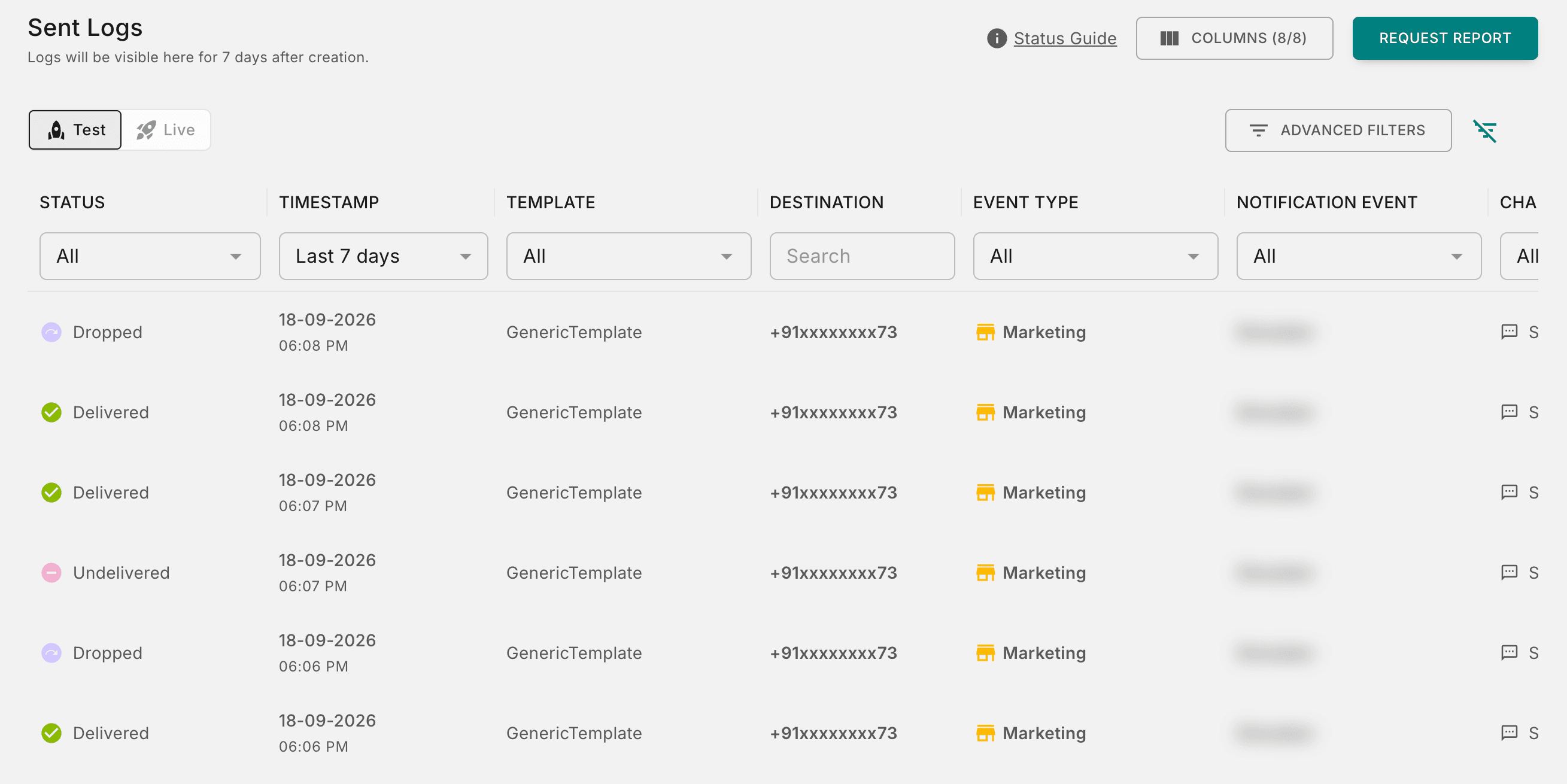
Each column in the logs table contains the following data, along with the filters you can use to narrow down results:
| Column | What it shows | Filter by |
|---|---|---|
| Timestamp | Exact date and time when the notification request was initiated from your application. | Date Range: Today, Yesterday, Last 7 days, Last 28 days, or a custom range. |
| Template | Template name and content layout used when the notification request was fired. | Template for logs from specific templates. Placeholders for logs containing a specific placeholder value in the notification payload. |
| Notification Event | Name of the Event configuration triggered by the notification API request made to Fyno. | Event Name for logs of a specific event across all configured channels and providers. |
| Destination | Recipient's address, along with the Channel used to deliver the message. | Destination for notifications sent to a specific recipient. Channel for SMS, WhatsApp, Email, Push, Chat, or In-App notifications. |
| Provider | Provider used to route and send the message. | Provider for notifications sent through a specific provider. Account Name for a particular account, if you have multiple accounts under a provider. |
Search
Use the Search bar to look up a specific Message ID or Request ID to quickly locate an individual notification for debugging.
DND Period Logs report
To check which notifications went out during your Do Not Disturb (DND) window, request a DND Period Logs report. For how to generate it, which messages it includes, and how the DND window is selected, see the DND Period Logs section in Report Extraction.
Test & Live Versions
The Sent Logs page keeps Test and Live data separate, so notifications you send while testing never inflate your live production figures.
Can't find a notification log?
- Check the environment. Switch to Test or Live, whichever the notification was sent from.
- Check the date. If the notification is older than your retention period, request a report instead.