

WhatsApp Templates
Create an Authentication WhatsApp Template
Create WhatsApp Authentication templates for OTP and verification code delivery using zero-tap auto-fill, one-tap auto-fill, or copy code methods.
Use an Authentication template to send one-time passcodes (OTPs) that verify a user's identity during login or sensitive actions. The message format is predefined ({{1}} is your verification code.) and can't include promotional content. Creating one takes five steps:
- Create the template
- Choose the code delivery type
- Complete the details
- Add more languages (optional)
- Save or send for approval
Step 1: Create the template
Navigate to Templates → External → WhatsApp Templates, then click Create. Fill in the dialog and click Create Template.
| Field | What to enter |
|---|---|
| Template Name | A unique name in lowercase, with underscores instead of spaces. For example, login_otp. |
| Integrations | The WhatsApp Business Account to create the template in. The template can only send messages from this account's phone numbers. |
| Category | Select Authentication. |
| Language | One or more languages. You can add or remove languages later. |
Step 2: Choose the code delivery type
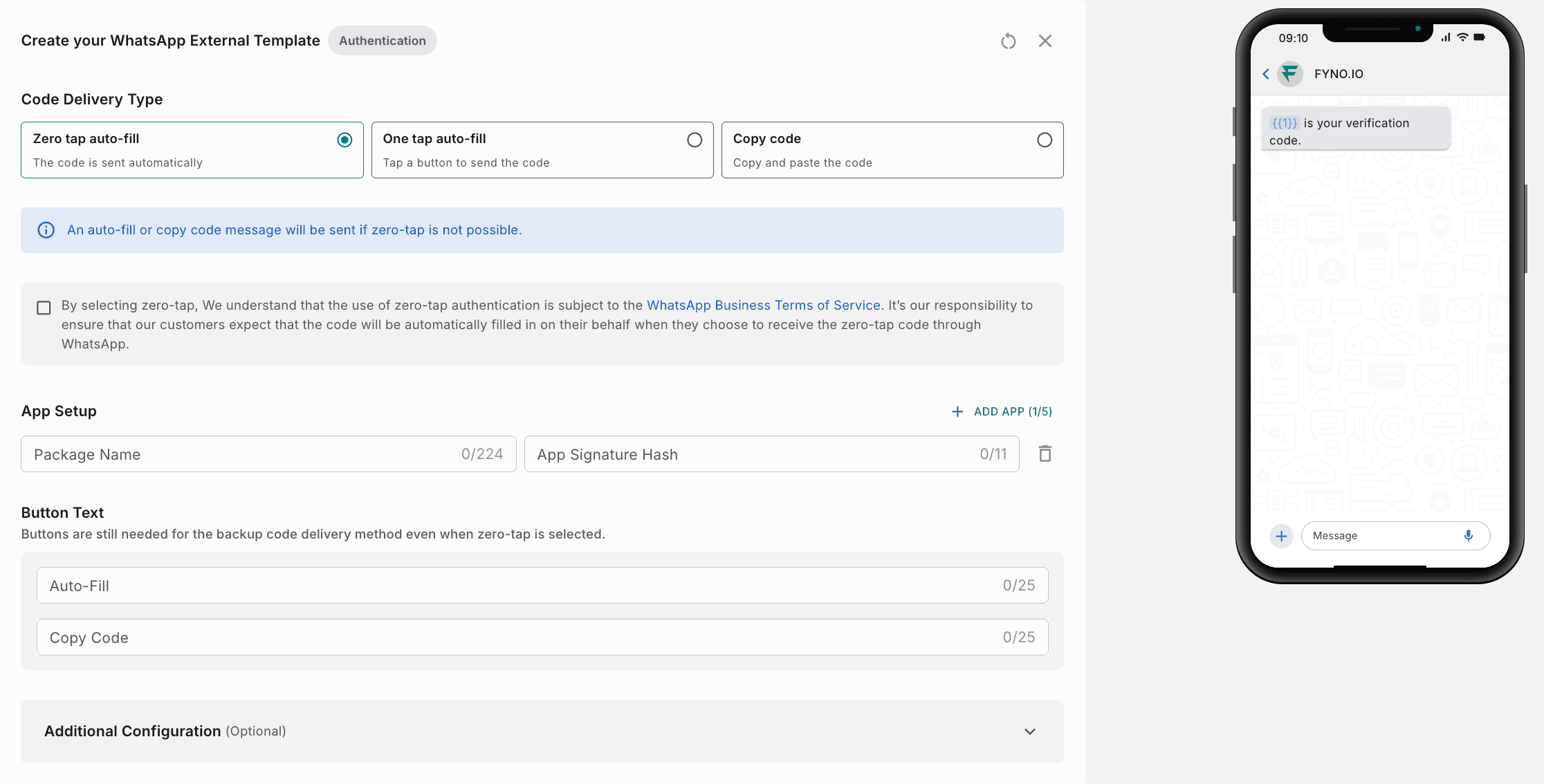
Under Code Delivery Type, choose how users receive the code.
| Delivery type | How it works | Use it for |
|---|---|---|
| Zero tap auto-fill | The code is sent and filled in automatically. | OTPs sent to your mobile app. |
| One tap auto-fill | The user taps an Autofill button to fill in the code. | OTPs sent to your mobile app or mobile browser. |
| Copy code | The user copies the code and pastes it. | Any device. |
If zero-tap isn't possible, an auto-fill or copy code message is sent instead.
To use zero-tap, select the checkbox to confirm that you accept the WhatsApp Business Terms of Service for zero-tap authentication, and that your customers expect the code to be filled in automatically.
Step 3: Complete the details
Set up your app (zero-tap and one-tap only)
Under App Setup, enter the details of the mobile app where the code should be filled in automatically.

| Field | What to enter |
|---|---|
| Package Name | Your Android app's package name (maximum 224 characters). |
| App Signature Hash | The signature hash of your app (maximum 11 characters). Meta uses it to verify your app and fill in the code securely. |
Click Add App to add more apps, up to 5.
Enter the button text
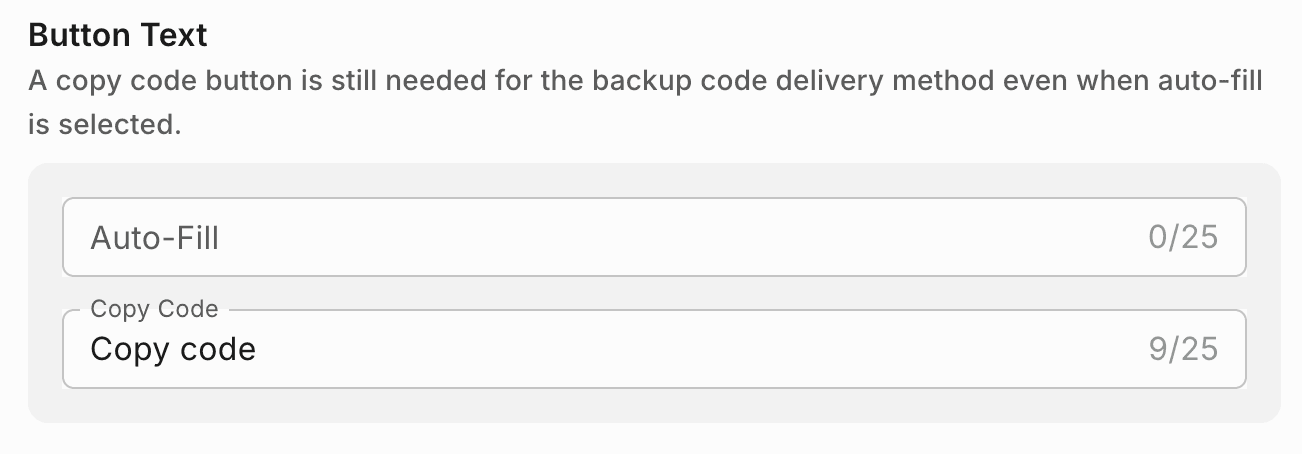
Enter the text users see on the button in WhatsApp (maximum 25 characters each).
| Button | What it does | Shown for |
|---|---|---|
| Auto-Fill | Fills in the code when the user taps it. | Zero tap and one tap auto-fill |
| Copy Code | Copies the code so the user can paste it. | All delivery types |
For zero-tap and one-tap auto-fill, you still need the button text. It's used for the backup message if auto-fill isn't possible.
Add extra security information (optional)
Expand Additional Configuration to add:
- Expiry time for the code: After the code expires, the auto-fill button is disabled.
- Security recommendation: Adds the text "For your security, do not share this code." to your message.
Step 4: Add more languages (optional)
To reach users in different regions, click Add next to Languages and add a version of the template in each language. Translate the button text in each language.
Step 5: Save or send for approval
When your template is ready, save it as a draft or send it to Meta for approval. See Save as Draft vs Send for Approval.