
WhatsApp Templates
Sync / Re-sync WhatsApp Templates
Sync existing WhatsApp templates and flows from supported providers into Fyno, refresh template statuses, and keep template metadata up to date.
If a template already exists in your WhatsApp Business Account, sync it into Fyno and use it right away, without recreating it.
Syncing is available for these WhatsApp providers:
- Kaleyra
- Meta
- Meta Direct
- ValueFirst
- Gupshup Enterprise
What syncing imports
| Data | What's included |
|---|---|
| Message templates | All templates, whatever their status, such as Approved, Pending, Rejected or Disabled. |
| WhatsApp Flows | All flows in the account. |
| Template metadata | Category, quality rating and status updates. |
Sync all templates
Open Sync WhatsApp Templates
On the External Templates page, open Sync WhatsApp Templates.
Select the integration
In Integrations, select the integration to sync from. Integrations are grouped by WABA / Namespace.
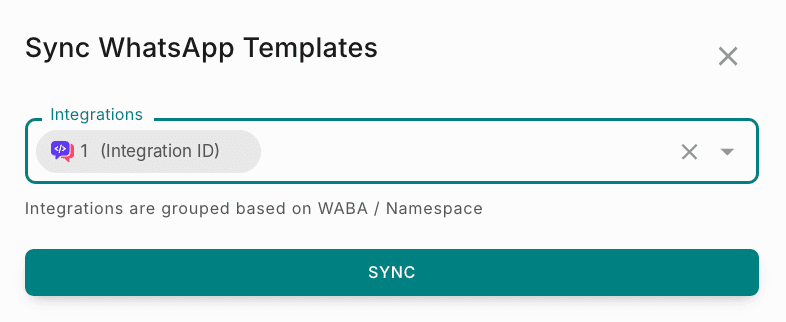
Click Sync
Fyno imports all the templates and flows in the selected integration, whatever their approval status.
Re-sync a single template
Re-sync one template when you only need its latest details, instead of syncing everything. Re-sync a template when:
- Its status has changed, such as to Approved, Rejected, Disabled or Pending.
- Its content or components have been updated.
- You've fixed and resubmitted a rejected template.
- A WhatsApp Flow it uses has been created or changed.
Find the template
On the External Templates page, find the template in the list.
Click the Re-sync icon
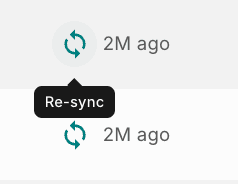
Click the Re-sync icon on the template's row. Fyno fetches the latest version and status of the template.
Check the last synced time
The time next to the icon, such as 2M ago, shows when the template was last synced. Check it to confirm the template was updated.