
WhatsApp Templates
Create a Marketing WhatsApp Template
Create WhatsApp Marketing templates with text, media, buttons, flows, and carousel cards to send promotional campaigns, announcements, and customer engagement messages.
Use a Marketing template to send promotions, announcements or campaign notifications to users. Creating one takes four steps:
- Create the template
- Build the message, as a Common message, a Carousel or a Calling Permission Request
- Add more languages (optional)
- Save or send for approval
Step 1: Create the template
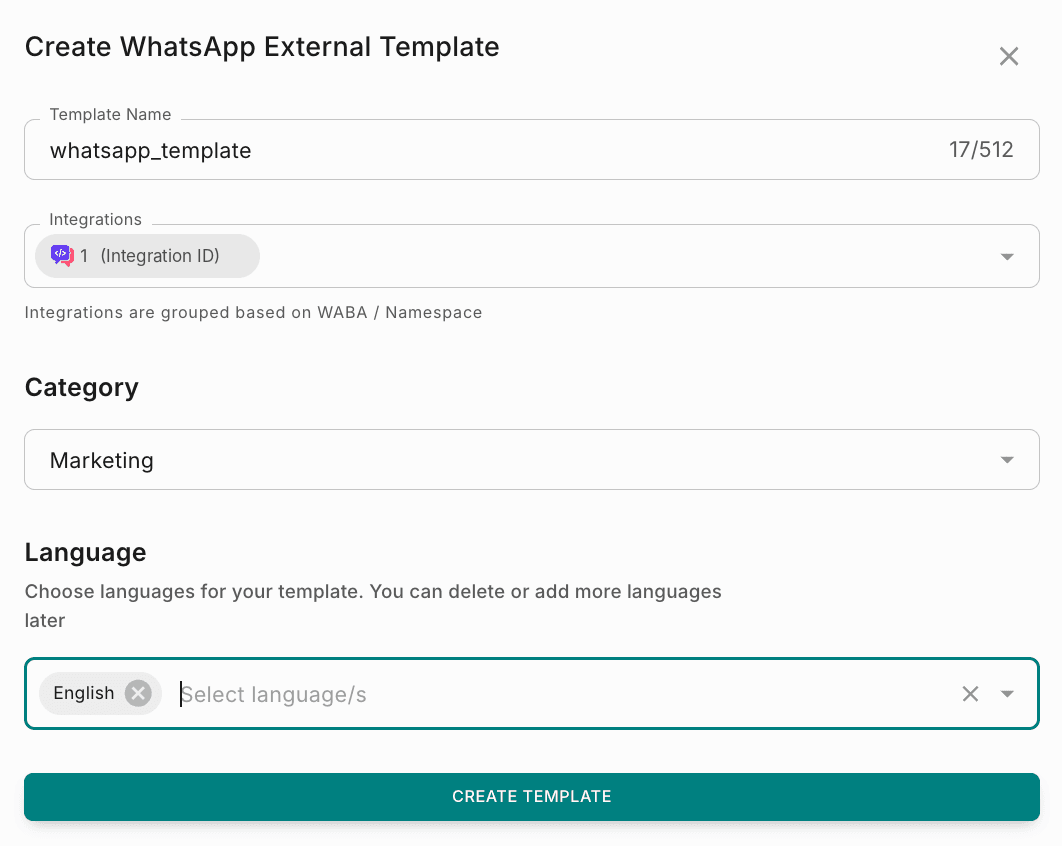
Navigate to Templates → External → WhatsApp Templates, then click Create. Fill in the dialog and click Create Template.
| Field | What to enter |
|---|---|
| Template Name | A unique name in lowercase, with underscores instead of spaces. For example, summer_sale_offer. |
| Integrations | The WhatsApp Business Account to create the template in. The template can only send messages from this account's phone numbers. |
| Category | Select Marketing. |
| Language | One or more languages. You can add or remove languages later. |
Step 2: Build the message
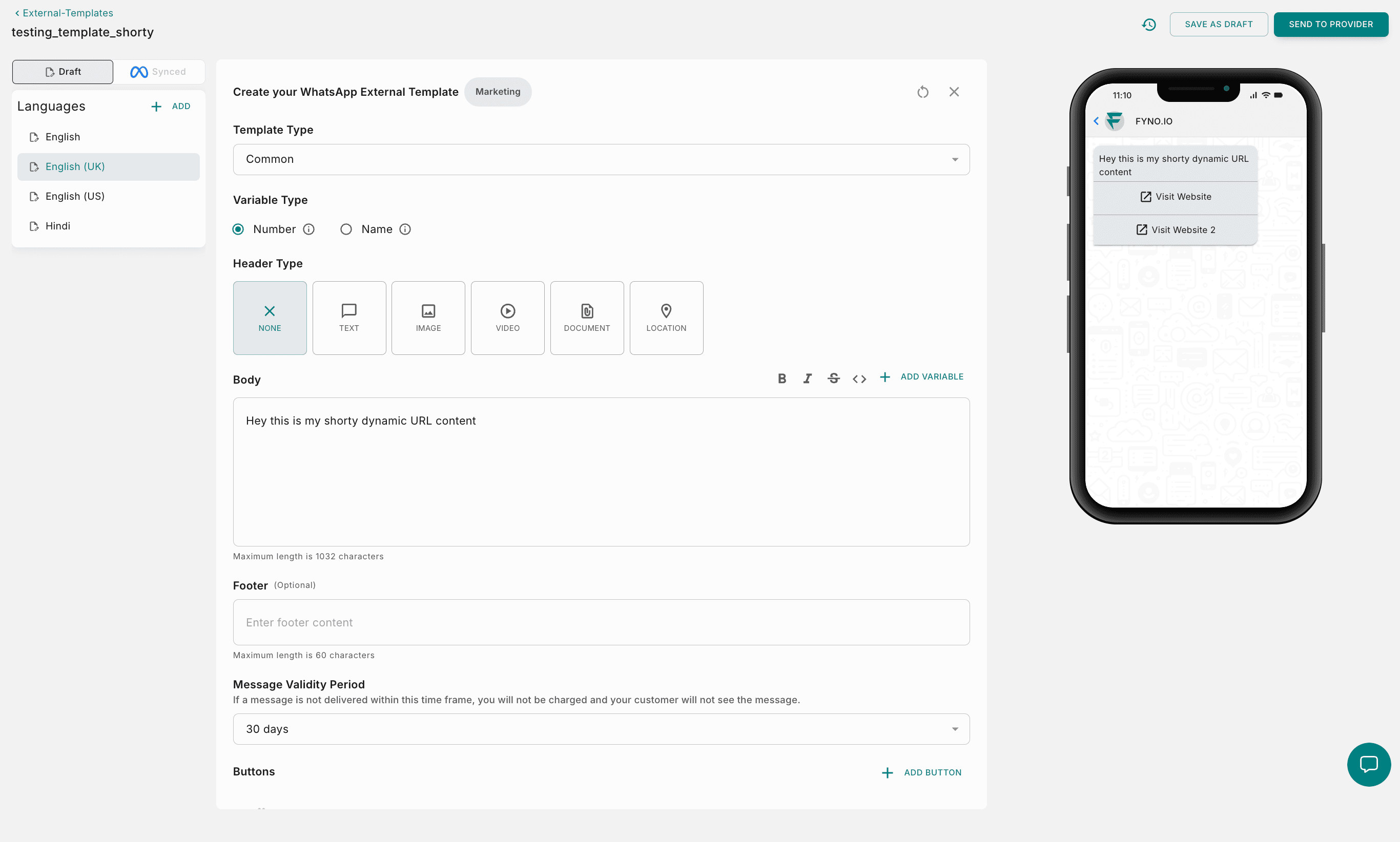
In Template Type, choose the type of message:
| Template type | Use it to |
|---|---|
| Common | Send a standard message with a header, body, footer and buttons. |
| Carousel | Send up to 10 swipeable cards, each with its own media and buttons. |
| Calling Permission Request | Ask users for permission to call them on WhatsApp. |
A standard WhatsApp message with a header, body, footer and buttons.
Add a header (optional)
The header appears at the top of the message. Choose one type.
Media samples are only used by Meta to review your template. Do not include any customer information.
Write the body
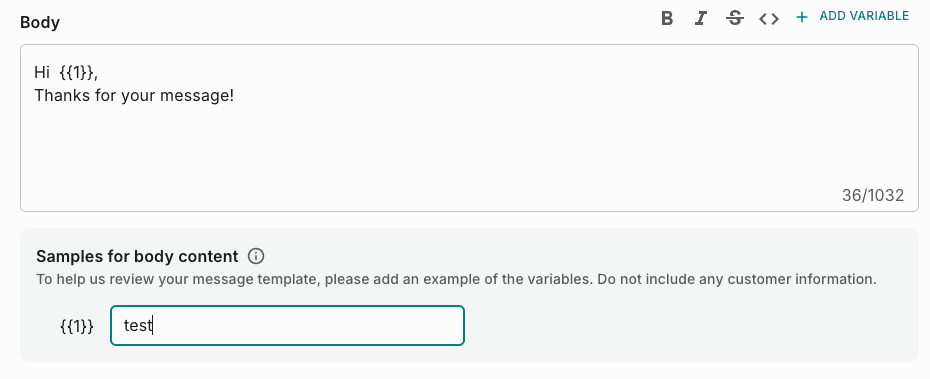
Enter the main message (maximum 1,032 characters). You can format text and add variables. Provide a sample value for every variable so Meta can review the message.
A short line at the bottom of the message, such as a disclaimer or opt-out instructions. Maximum 60 characters, with no variables.

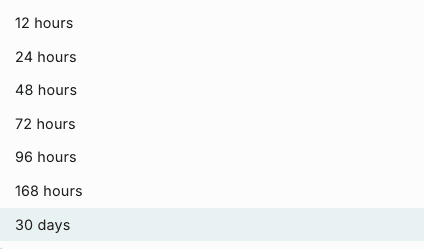
Set the message validity period
Choose how long Meta tries to deliver the message, for example 30 days. If it isn't delivered in time, you aren't charged and the recipient doesn't see it.
Add buttons (optional)
Click Add Button and choose a type. The menu shows how many of each type you can add.
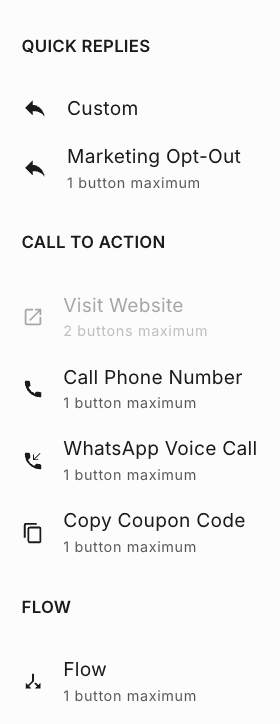
| Button type | Maximum |
|---|---|
| Call to Action buttons in total | 4 |
| Visit Website | 2 |
| Call Phone Number | 1 |
| WhatsApp Voice Call | 1 |
| Copy Coupon Code | 1 |
| Marketing Opt-Out | 1 |
| Flow | 1 |
Step 3: Add more languages (optional)
To reach users in different regions, click Add next to Languages and add a version of the template in each language. Translate the message and button text, and keep the same variables in every language.
Step 4: Save or send for approval
When your template is ready, save it as a draft or send it to Meta for approval. See Save as Draft vs Send for Approval.