

Fyno Templates
Fyno Verify
Configure Fyno Verify to authenticate users using OTPs or verification links across SMS, Email, WhatsApp, Push, In-App, and Voice channels. Customize validation rules, retries, expiration periods, and multichannel verification workflows.
Fyno Verify is a fully managed API for multichannel user verification by OTP or link. A single API handles OTP generation, delivery and verification securely, so you can improve your onboarding and login flows.
Verifying that a new user is who they say they are is an essential first step in your relationship with them. It reduces spam and fraud on your site and keeps your users secure.
Fyno Verify supports SMS, Email, WhatsApp, Push, InApp and Voice.
Configure Fyno Verify
Open Fyno Verify
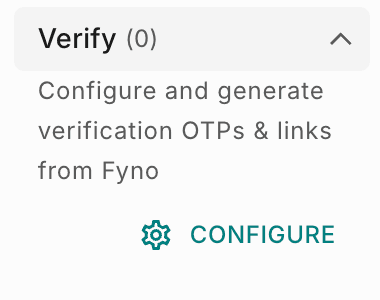
In the template editor, go to System Variables → Verify in the left panel and click Configure.
Turn on OTP, Link or both
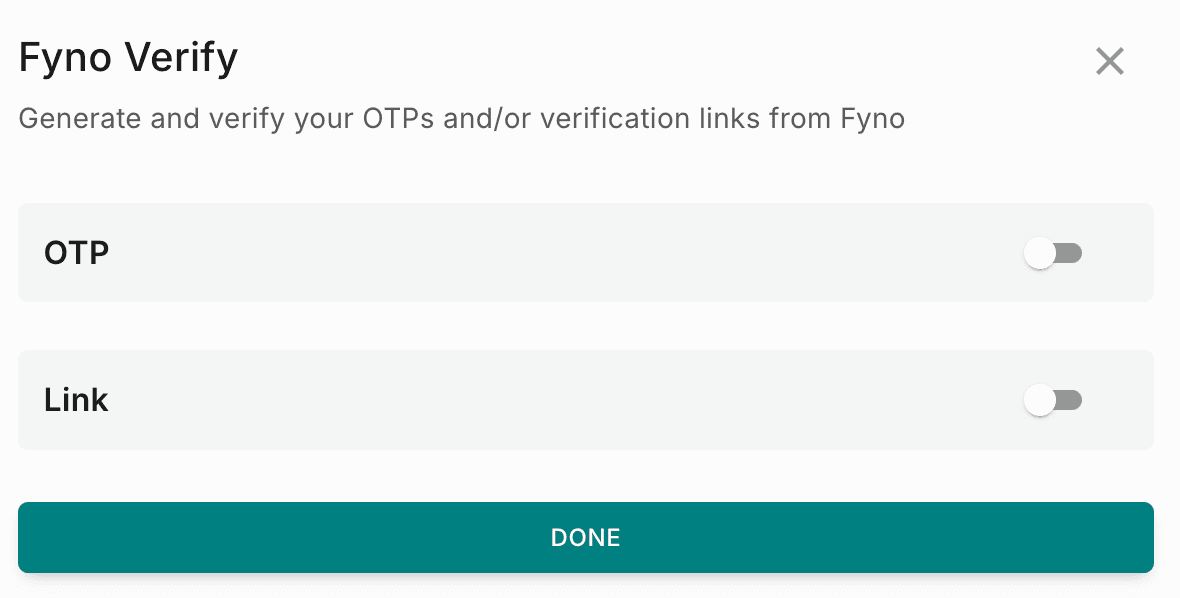
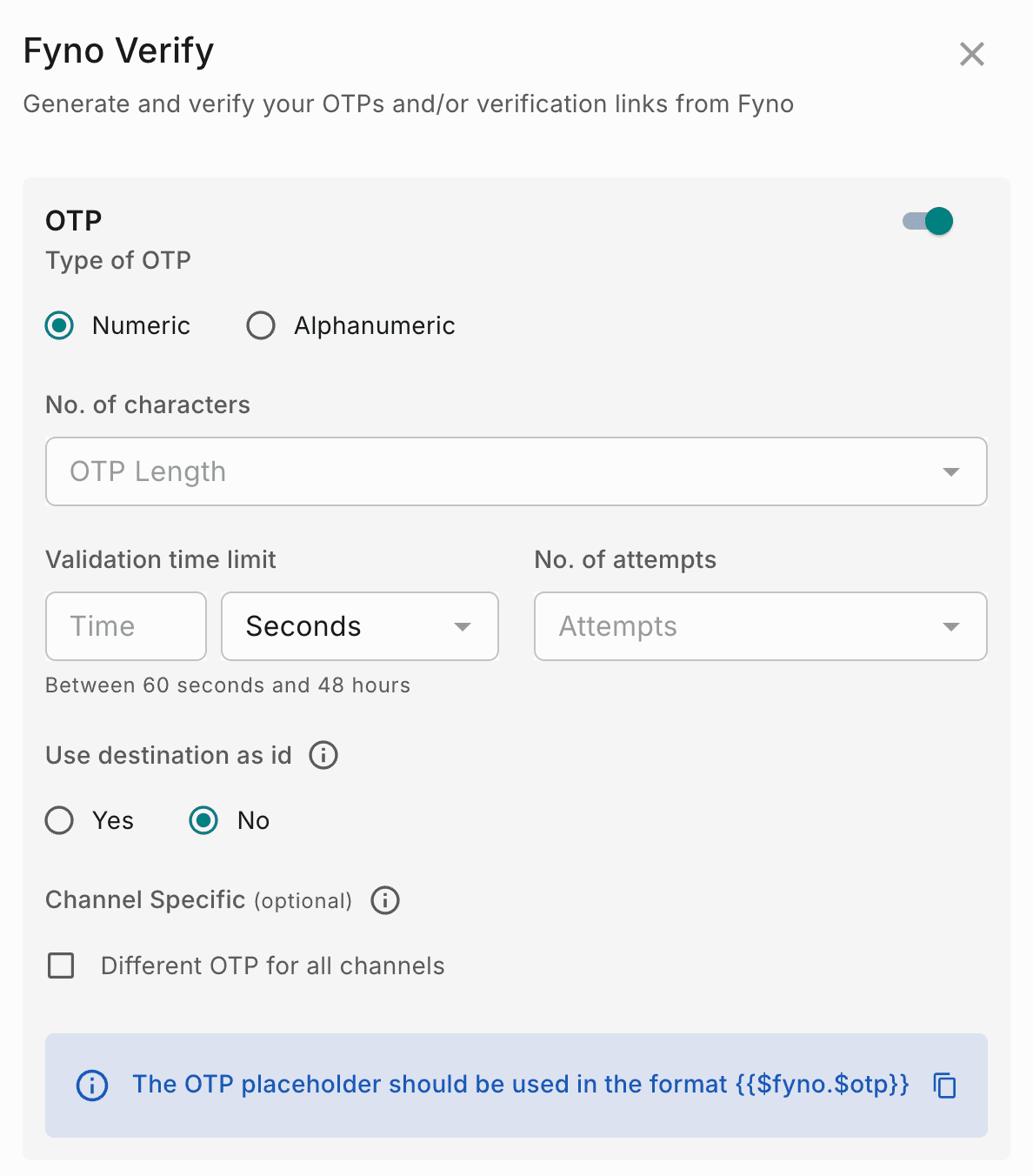
In the Fyno Verify pop-up, turn on OTP, Link or both, then configure each one. See OTP settings and Link settings.
Save
Click Done.
You can configure both OTP and Link in the same template.
OTP settings
| Setting | What it does |
|---|---|
| Type of OTP | Choose Numeric or Alphanumeric. |
| No. of characters | The OTP length, from 3 to 6 characters. |
| Validation time limit | How long the OTP is valid, between 60 seconds and 48 hours. |
| No. of attempts | The number of allowed retries, from 1 to 10. |
| Use destination as id | Select Yes to send the destination (email address, phone number and so on) as the ID when you verify the OTP the user entered. Select No to send the request_id in the Fyno Verify API request instead. |
| Channel Specific (optional) | By default, the same OTP is sent to every channel in the template. Select Different OTP for all channels to send a different OTP to each channel. |
Use {{$fyno.$otp}} as the OTP placeholder in your template.
Link settings
| Setting | What it does |
|---|---|
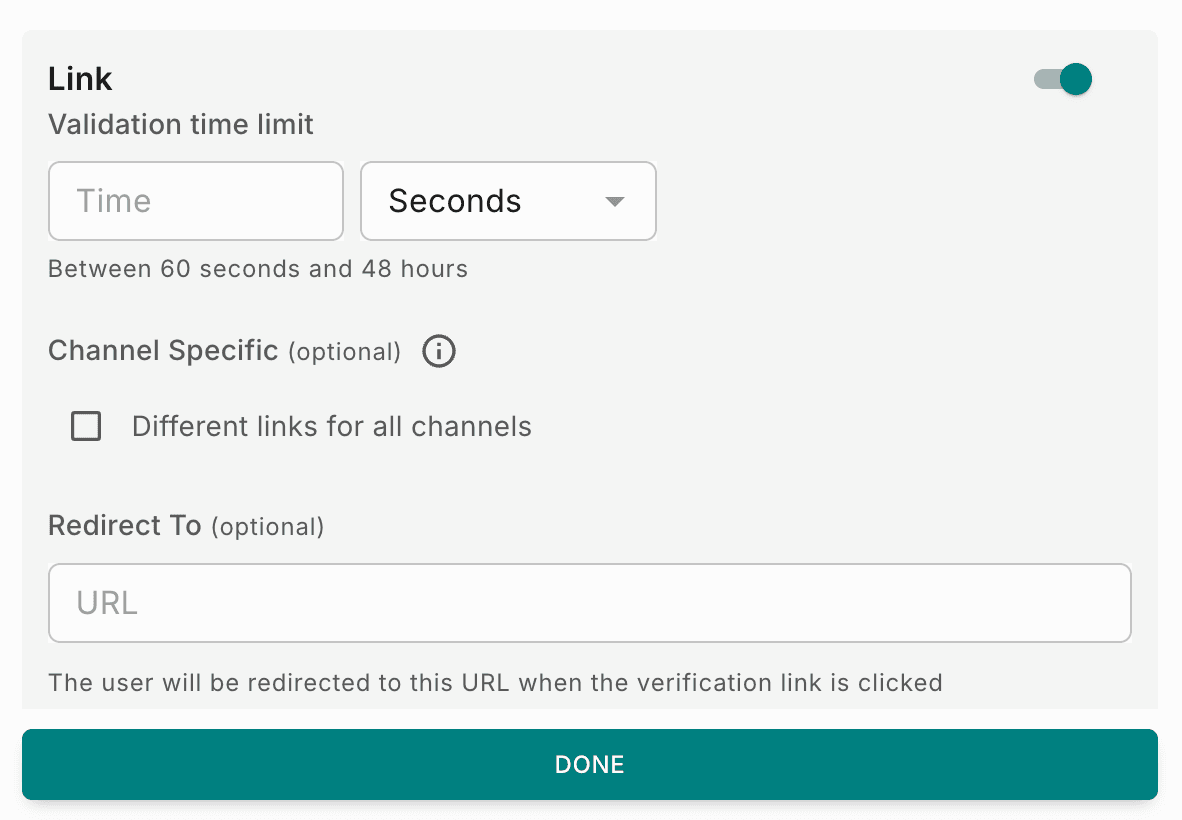
| Validation time limit | How long the link is valid, between 60 seconds and 48 hours. |
| Channel Specific (optional) | By default, the same link is sent to every channel in the template. Select Different links for all channels to send a different link to each channel. |
| Redirect To (optional) | The URL users are redirected to when they click the verification link. If you leave it empty, users see a success screen once the link is verified. |
Use {{$fyno.$link}} as the link placeholder in your template. The generated URL follows the format https://fy1.in/verify/x, where x is a 32-character string.
Verify the OTP with the API
Call the Fyno Verify API to validate the OTP the user entered. The request depends on the Use destination as id setting. WSID is your Workspace ID.
Send the request_id and the OTP:
https://api.fyno.io/v1/{{WSID}}/live/verify/validate?request_id=0b59df61-c587-4f44-a669-f0177a161b81&otp=2811How verification is logged
For example, a bank sends a login OTP by both SMS and email. How Fyno updates the Sent Logs depends on the Channel Specific setting:
| Scenario | Same OTP for all channels | Different OTP for all channels |
|---|---|---|
| What the user receives | The same OTP in SMS and email. The user can enter it from either channel. | A different OTP in each channel, for example 4561 in SMS and 7891 in email. |
| Validation succeeds | Marked Verified for both SMS and email. | Marked Verified only for the channel whose OTP was entered. For example, entering 4561 marks SMS as Verified. |
| Validation fails | Marked Failed to Verify for both SMS and email. | Marked Failed to Verify for both SMS and email. |
How Fyno Verify works
For example, brand ABC uses Fyno Verify to authenticate its users.
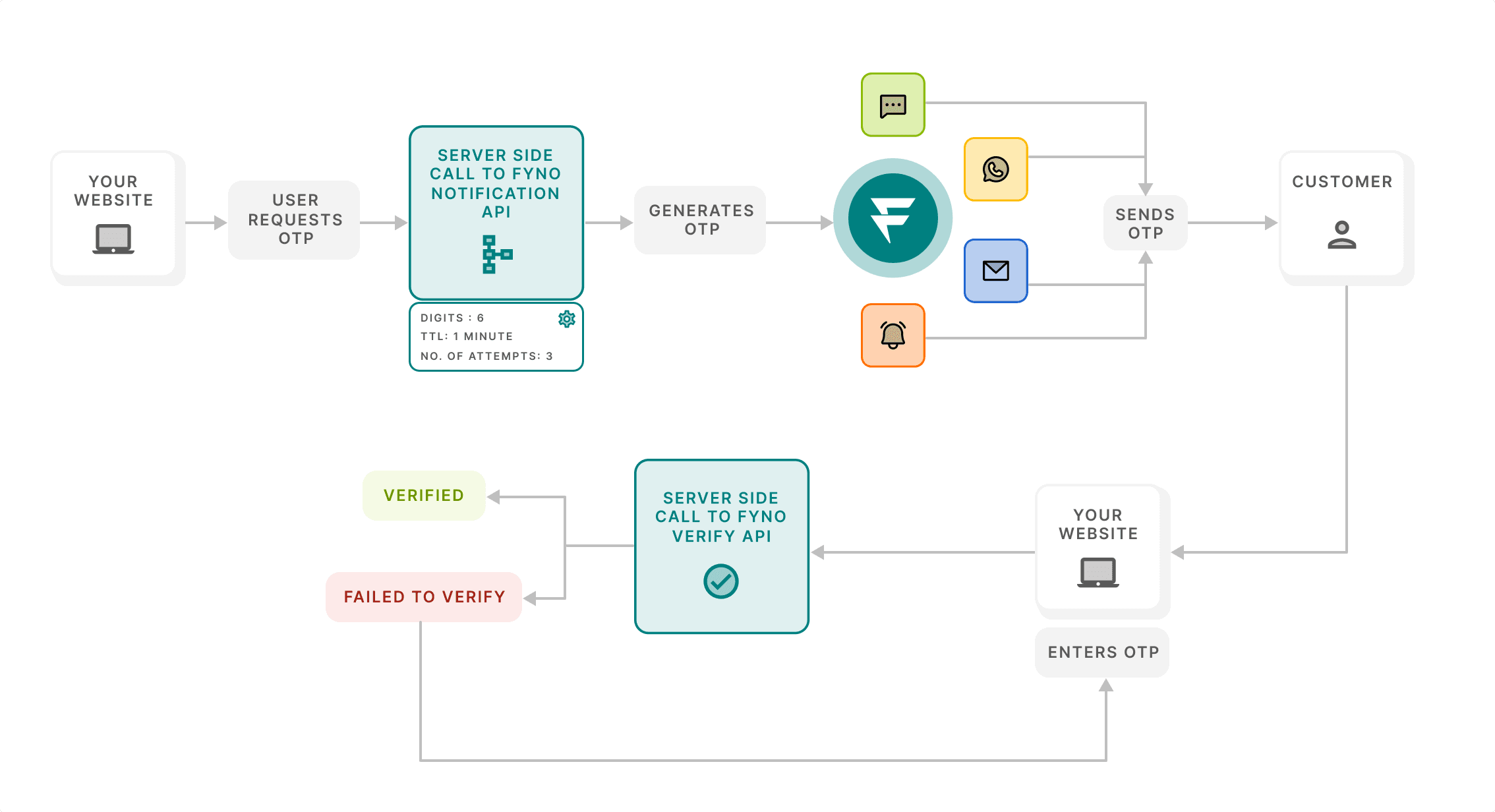
The user enters their phone number or email address in ABC's app or website.
ABC triggers a Fyno notification event from its backend, which generates an OTP.
Fyno sends the OTP to the user through the channels configured in the notification event.
The user enters the OTP in ABC's app or website.
ABC's backend calls the Fyno Verify API to validate the OTP. See Verify the OTP with the API.
Fyno verifies the OTP and returns one of these responses to ABC's application:
{
  "status": "ok",
  "_message": "verified"
}If validation fails, the user can retry, up to the number of attempts you configured. Once the user has used all their retries, ABC decides how long to wait before letting the same user try again.