
Fyno Templates
Handlebars
Learn how to use Handlebars in Fyno templates, or generate them with Fyno AI, to create dynamic content with placeholders, conditional logic, loops, date formatting, mathematical operations, custom helpers, and advanced template expressions.
Handlebars is a JavaScript library used for creating dynamic templates.
It allows you to define templates with placeholders, and these placeholders are replaced with data when the template is triggered with the information sent in the payload.
Handlebars within Fyno support features like conditional operations, loops, date time formatting, partial searches, and custom helpers, making it a powerful tool for building your templates.
Handlebars in Fyno's Templates
To understand how handlebars work, we first need to establish a sample payload, based off which the Handlebars function and applicability can be demonstrated.
{
  "members": [
    {
      "first_name": "Ashwin",
      "last_name": "Agarwal",
      "city": ""
    }
  ],
  "investments": [
    {
      "amount": 10,
      "company": "L&T"
    },
    {
      "amount": 20
    }
  ],
  "companies": {
    "L&T": "India",
    "Apple": "USA"
  },
  "user_type": "pro",
  "period": {
    "start": "2023-10-01",
    "end": "2023-10-03"
  },
  "classification": ["active", "pro"]
}
Fyno has default as well as custom handlebars that you can use in your templates. Let's have a look at what these are and how to use them using the above payload and data as example responses. You can also generate handlebars with Fyno AI by describing what you need in plain language.
Use single quotes inside handlebars
Double quotes inside handlebars can break your template syntax, especially in emails. Use single quotes instead. For example, use {{math number1 '+' number2}} instead of {{math number1 "+" number2}}.
Generate Handlebars with Fyno AI
Don't want to write the syntax yourself? Describe what you need in plain language, and Fyno AI will generate a ready-to-use handlebar for you.
Where to find it
You can open the generator from two places:
- Left panel on the template page: Expand Handlebars > Build Your Own and click Generate. If you'd rather build the logic yourself, this section also links to the Handlebars Builder.
- AI menu on input fields: Any field that supports handlebars has an AI menu. Choose Generate Handlebar from it.
The AI menu also has Improve Handlebars, which refines a handlebar that's already in the field instead of starting from scratch.
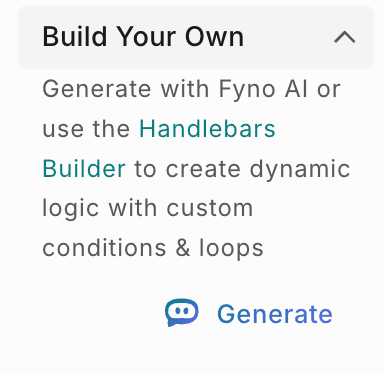
Generate a handlebar
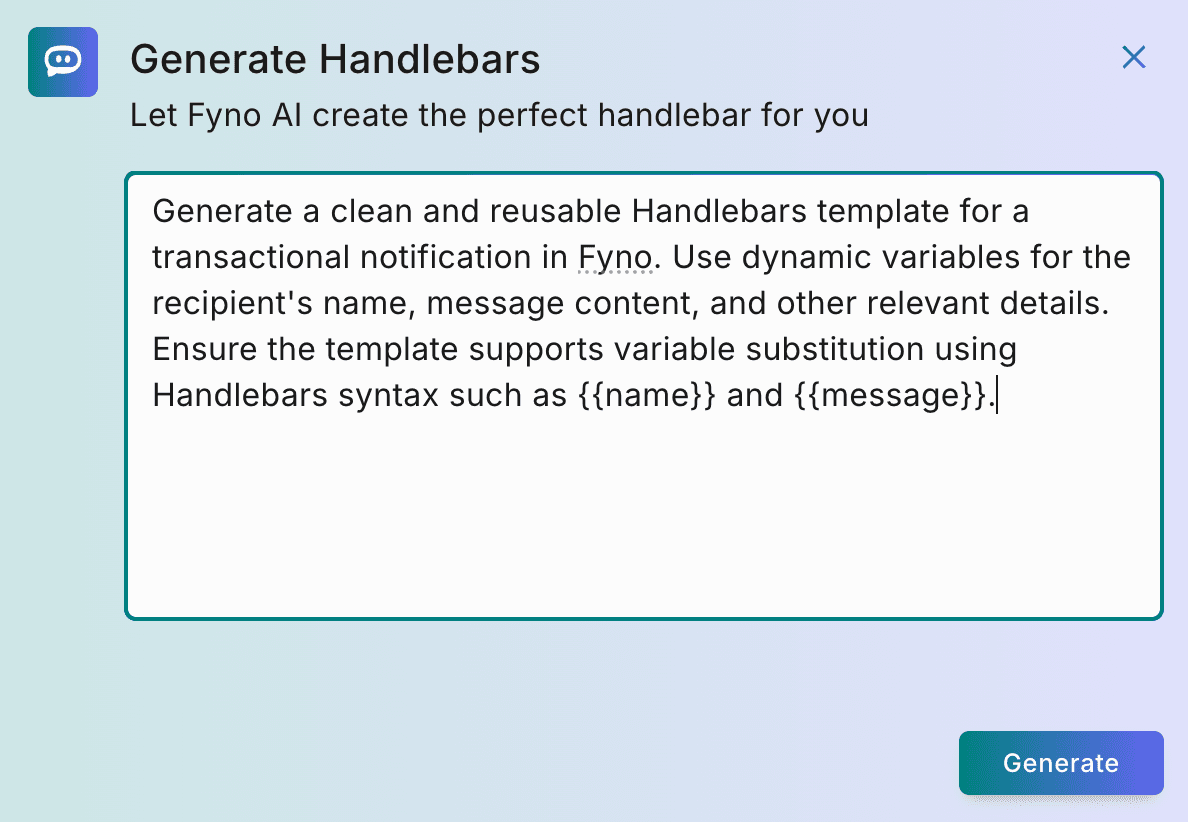
Describe your requirement
In the Generate Handlebars window, describe what the handlebar should do. For example: Show order_date in short Indian date format. Then click Generate.
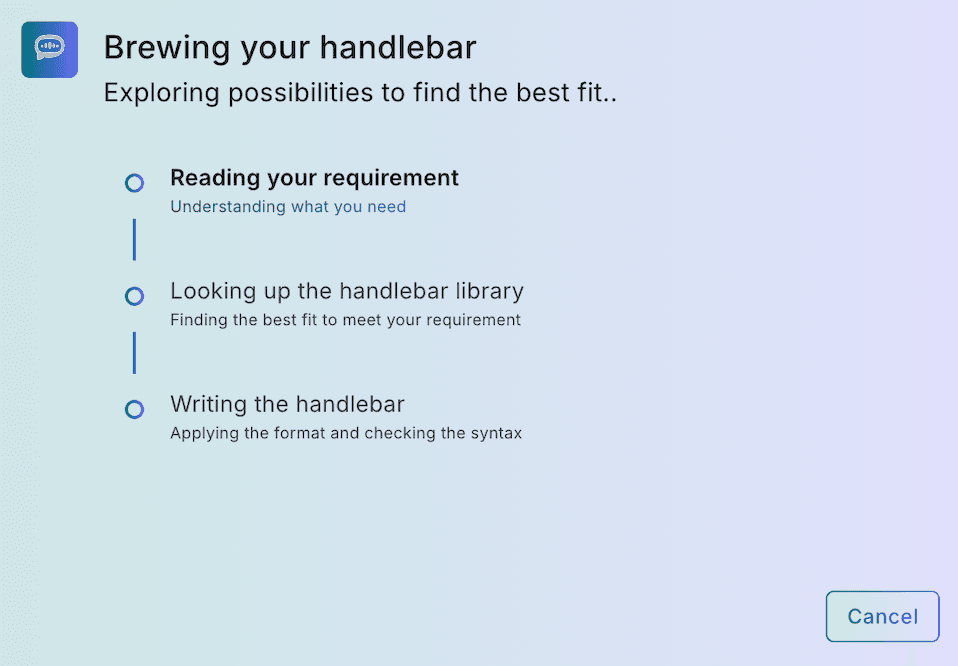
Let Fyno AI work
While Brewing your handlebar is shown, Fyno AI reads your requirement, looks up the best-fitting helper from the handlebar library, and writes the handlebar, checking its syntax along the way. You can click Cancel at any point.
Review and copy
Fyno AI shows the generated handlebar with a sample output, so you can confirm it does what you expect.
Click Copy and paste it into your template.
Check the quotes in generated handlebars
Arguments inside a handlebar must use single quotes, because double quotes can break your template, especially in emails. If a generated handlebar contains double quotes, replace them with single quotes before you use it.
Example requirements
These examples use the sample payload from earlier on this page.
Not quite right? Regenerate with feedback
Click Try Again to open Re-Generate Handlebar. Refine your requirement and, optionally, choose what went wrong from the Feedback dropdown. Your feedback helps us improve Fyno AI.
Click Generate to try again, or Back to return to the previous result.
If generation fails
If Fyno AI can't generate a handlebar, you'll see Oops! That didn't go as planned. Click Try Again, ideally with a more specific prompt. If an earlier attempt had succeeded, you can also click View previous Handlebar to go back to that result.
Handlebars Builder
The Handlebars Builder lets you build handlebar logic visually, without writing the syntax yourself. To open it from a template, expand Handlebars > Build Your Own in the left panel and click Handlebars Builder.
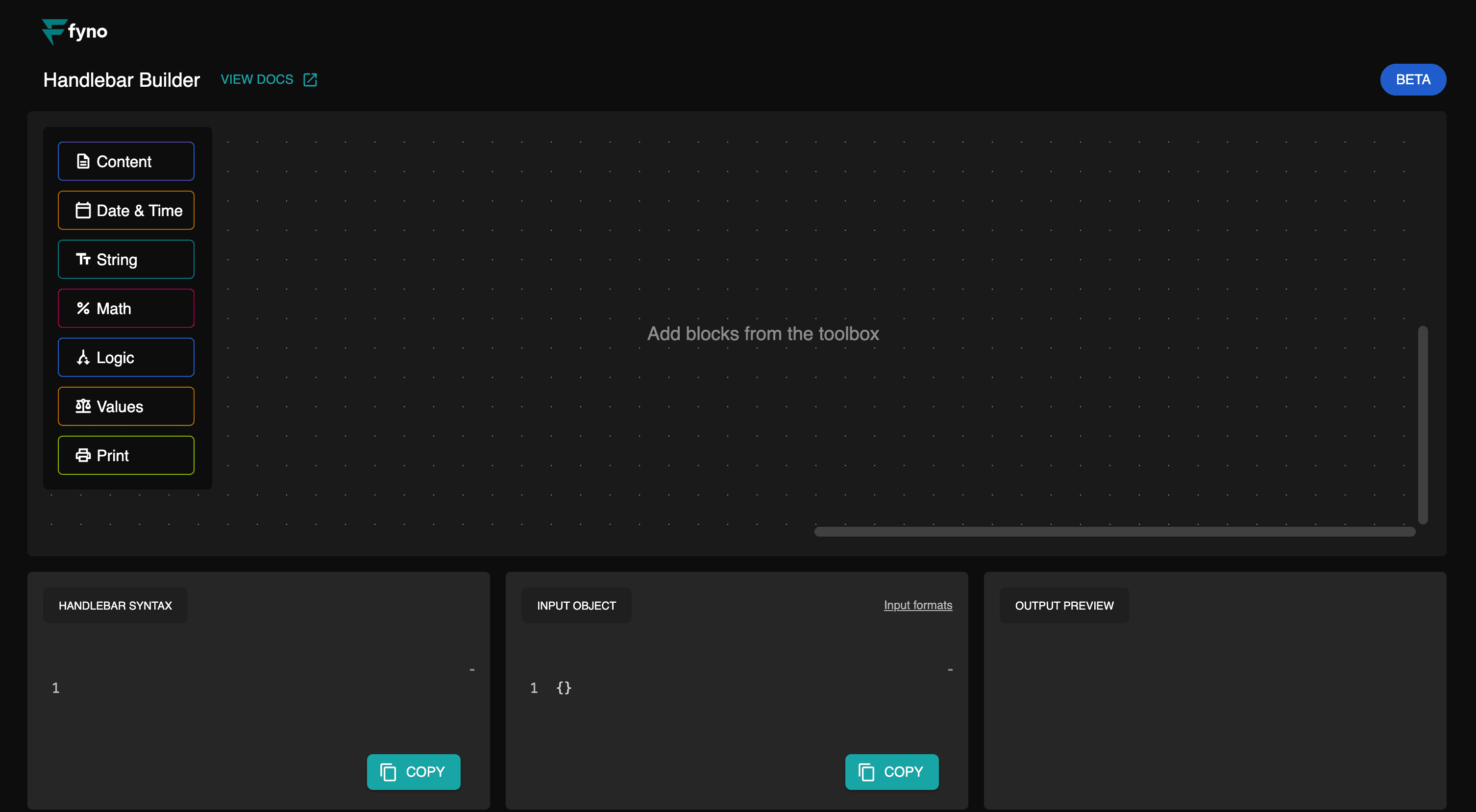
Add blocks
Add blocks from the toolbox (Content, Date & Time, String, Math, Logic, Values and Print) to build your logic.
Enter sample data
In Input Object, enter sample data as JSON, such as the sample payload on this page.
Check the result
Handlebar Syntax shows the generated handlebar, and Output Preview shows the result for your sample data.
Copy the handlebar
Click Copy under Handlebar Syntax and paste the handlebar into your template.