
Creating a Template
Voice Templates
Create and manage voice templates for IVR, text-to-speech, and call connect workflows across supported voice providers, including testing, dynamic content, and approval workflows.
When you add the Voice channel to a template, the Create your Voice Template screen opens. First choose the Type of call, then configure it. Because Fyno works with many voice providers, some types also need setup in your provider's platform. See Provider-specific setup.
| Type | What it does |
|---|---|
| IVR | Uses the IVR info configured on the provider's portal. |
| Call Connect | Connects your bridge number and the recipient, on each leg of the call. Also used for call masking. |
| Text to Speech | The typed text is spoken out when the call is connected. |
Create a voice template
IVR
The IVR configured on your integration page is used to run the call.
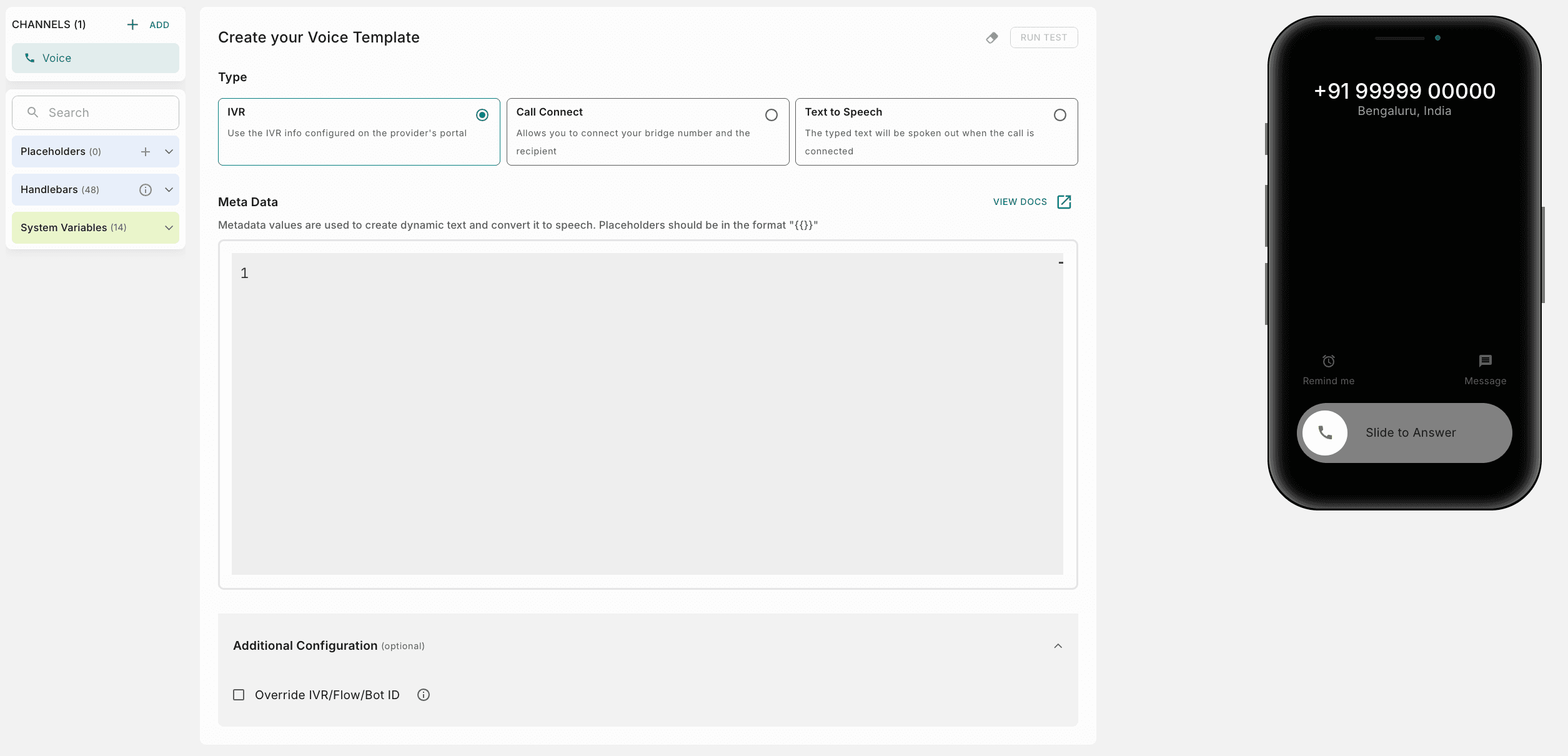
Select IVR
In Type, select IVR.
Add the metadata
In Meta Data, enter the metadata you want to share with the provider when this call is triggered, as JSON. Metadata values are used to create dynamic text and convert it to speech. Placeholders must be inside double quotes, in the format "{{ }}". For example:
{
  "name": "{{name}}",
  "greet1": "Thank you for being with us."
}
Click View Docs in the editor for more details.
Override the IVR/Flow/Bot ID (optional)
Expand Additional Configuration and select Override IVR/Flow/Bot ID to use a different IVR, flow or bot ID than the one configured in your integration.
Provider-specific setup
Each provider processes voice data differently. Configure your provider as shown below.
How to add dynamic content
You can add dynamic content to your templates using one of the four options below:
How to test a voice template
Use this feature to test a template thoroughly before including it in any Notification Event. This ensures early detection and resolution of any potential issues, for a seamless user experience.
Click Run Test at the top right of the template. The test pop-up opens.
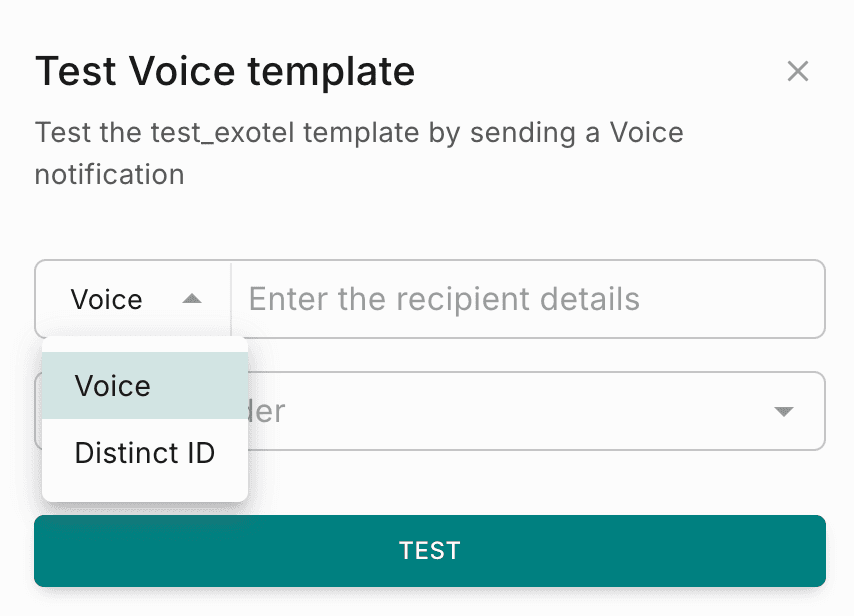
Enter either the mobile number of the recipient, or a distinct_id. Make sure to enter the distinct_id of a Test User profile.
Select a voice integration that is already configured in Fyno.
Click Test to place the call to the recipient with the selected integration. You see the success or failure message along with a link to the Sent Logs.
Save and go live
Click Save to save the template as a Test version. You can save different versions of the template this way. Use Go Live when you are ready to move your template to the Live version.
If your workspace has a maker-checker workflow enabled for template management, Go Live needs an additional approval step. Choose from your designated approvers, who review and authorize the template changes. See Approval flow for the steps.