
WhatsApp Templates
How to Track URL Clicks in WhatsApp
Learn how to track URL clicks in WhatsApp messages using Fyno Shorty for templates created either in Fyno or through Meta and other WhatsApp Business Solution Providers (BSPs).
Fyno tracks clicks on WhatsApp Visit Website buttons by routing them through Fyno Shorty, Fyno's URL shortener. Every click is recorded before the user is sent on to the actual URL.
The setup depends on where you create the WhatsApp template:
Choose a tracking type
Whichever way you create the template, you choose one of two URL tracking types.
| General | User-Level | |
|---|---|---|
| Tracks clicks at | Notification Event level | User and channel level |
| Click status in Sent Logs | No | Yes |
| Engagement funnel chart in Analytics | No | Yes |
| URL engagement chart in Analytics | Yes, cumulative number of clicks | Yes |
| Recommended for | Product URLs for Google or Facebook ads, or when you only need the number of clicks | Unique links per user, such as payment links, or when you need the click event at the message level |
WhatsApp template created in Fyno
Create the WhatsApp template
Go to Templates → External and create a WhatsApp template. See External templates.
Add a Visit Website button
Add a Visit Website button and configure the URL.
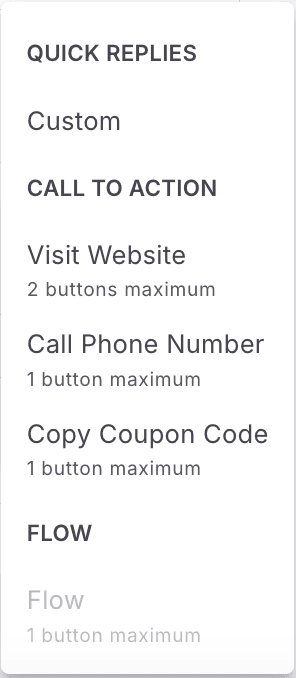
You can use one of two URL types:
- Static URL: Use this when you send the same URL to all your users, such as your website URL.
- Add the button text that appears as the CTA in your WhatsApp message.
- Provide a valid website URL.
- Select the Track URL checkbox.
- Dynamic URL: Use this when you send different URLs to different users, such as payment links.
- Turn on the Dynamic URL toggle.
- Add the button text that appears as the CTA in your WhatsApp message.
- Provide a valid website URL.
- Select the Track URL checkbox.
Submit for approval
Click Save and send the template to Meta for approval.
Use the template in a Fyno template
Once the template is approved, go to Templates → Fyno and create a template with the WhatsApp channel. Choose Template as the Message Type and select the approved template in External Template Name / ID.
Set the button URL
In the buttons section, add the placeholder you want to track if you added a dynamic URL. If you added a static URL, you don't have to do anything.
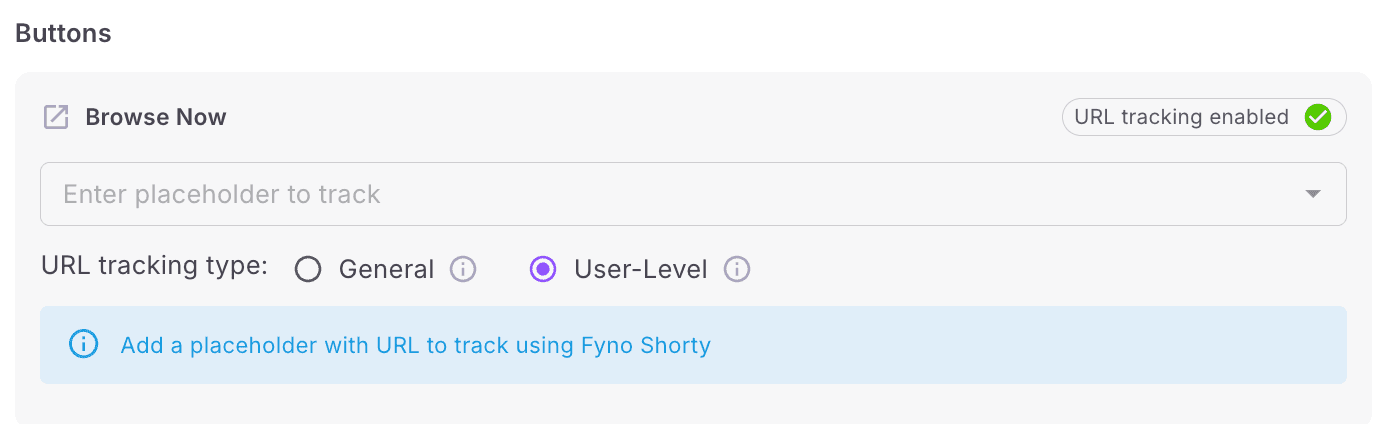
Define the placeholder
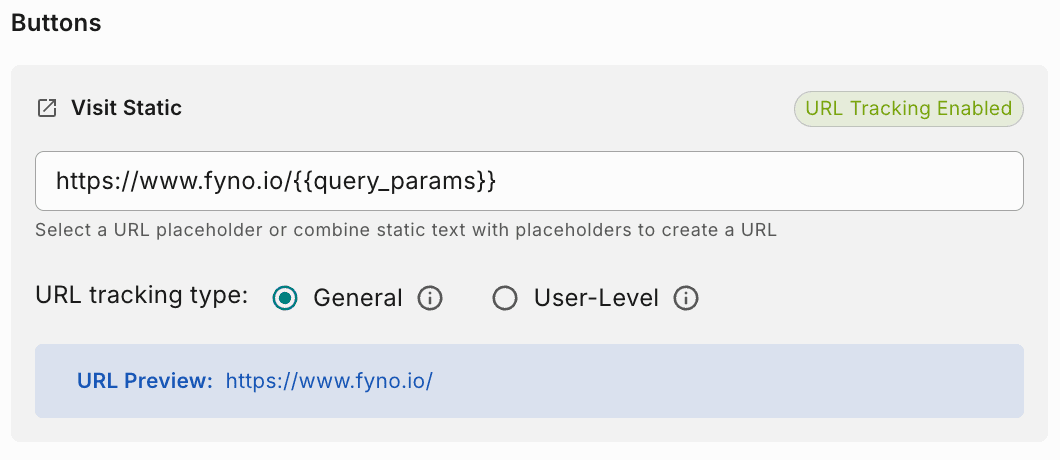
Add the same placeholder in the Placeholders section in the left panel of the template editor. You can also combine static text and dynamic placeholders, as shown below.
WhatsApp template created in Meta or a BSP
To track URL clicks on a template created outside Fyno, the button must use the Dynamic URL type.
Follow these steps if you create the WhatsApp template in Meta or a service provider such as Kaleyra or Gupshup.
Create the template
Create a WhatsApp template in Meta or your BSP.
Add a Visit Website button with a dynamic URL
Add Visit Website as the type of action and configure it as follows:
| Setting | Value |
|---|---|
| Button text | The text that appears as the CTA in your WhatsApp message |
| URL type | Dynamic |
| Website URL | https://fy1.in |
| Sample URL | https://fy1.in |
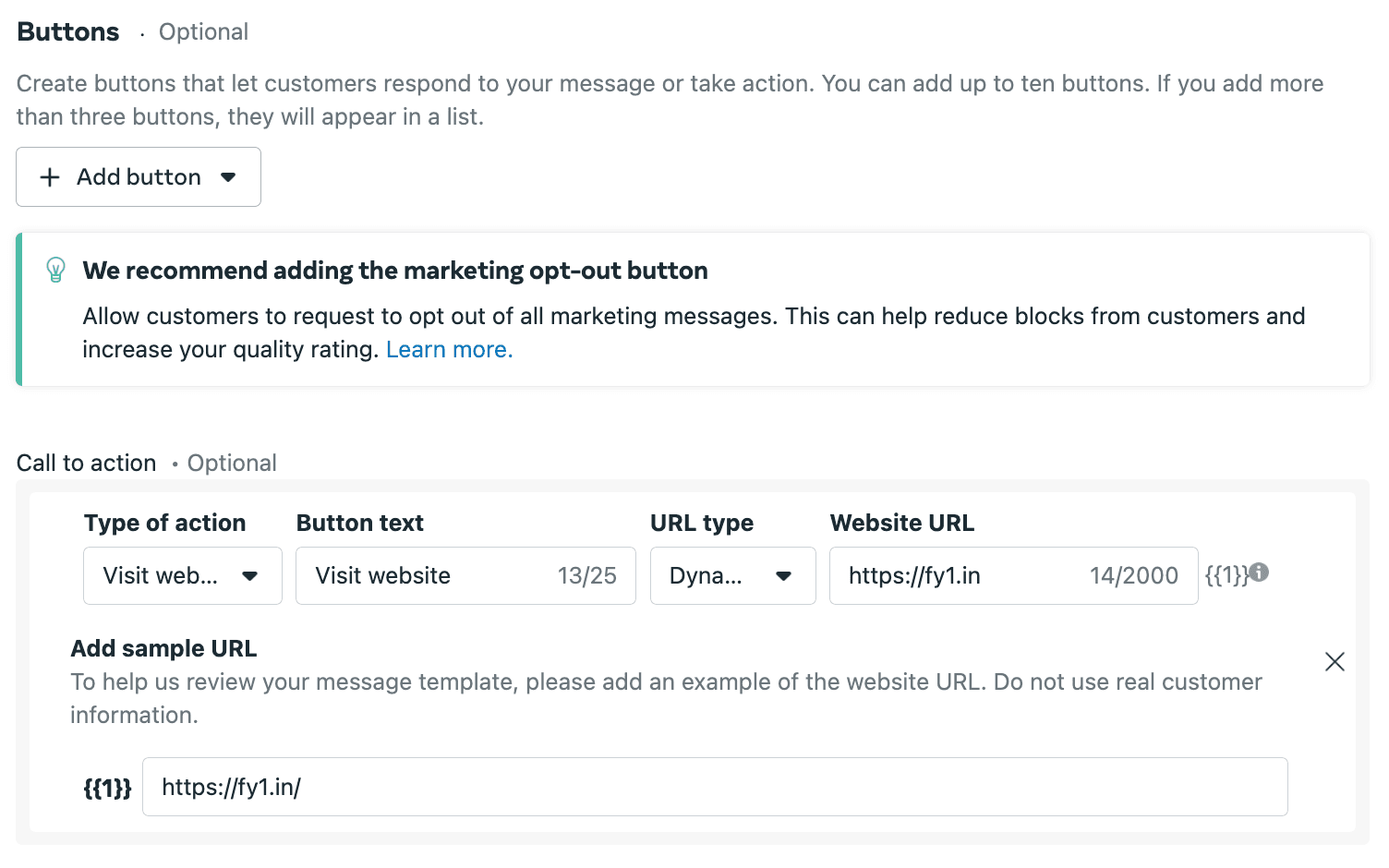
Sync the approved template
Once the template is approved, go to Templates → External in Fyno and click the Sync icon next to WhatsApp. This syncs the template you created in your BSP to Fyno.
Use the template in a Fyno template
Go to Templates → Fyno and create a template with the WhatsApp channel. Choose Template as the Message Type and select the synced template in External Template Name / ID.
Set the button URL
In the buttons section, add the placeholder you want to track.
Define the placeholder
Add the same placeholder in the Placeholders section in the left panel of the template editor. You can also combine static text and dynamic placeholders, as shown below.