

Email Templates
How to Add Attachments in Email
Learn how to attach files to emails using static uploads, dynamic placeholders, fixed file mappings, and runtime-generated attachments in Fyno.
You can add a single attachment or multiple attachments to your email, and they can be static or dynamic.
There is no limit to the number of attachments. However, the total size of the attachments should not exceed 10MB. Supported file extensions are .jpg, .jpeg, .png, .gif, .pdf, .mp4, .doc, .docx, .xls and .xlsx.
Attachment options
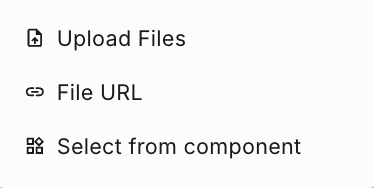
Click the attachment icon (paperclip) next to the Subject field in any email editor. You see three options:
| Option | What it does |
|---|---|
| Upload Files | Attach files from your system. The file stays as a static attachment and is sent with the email every time it is triggered. |
| File URL | Attach a file from a URL. Use static values, or placeholders for files that change at send time. See Attach a file from a URL. |
| Select from component | Attach a PDF saved as a component. Only PDF components can be attached. |
Attach a file from a URL
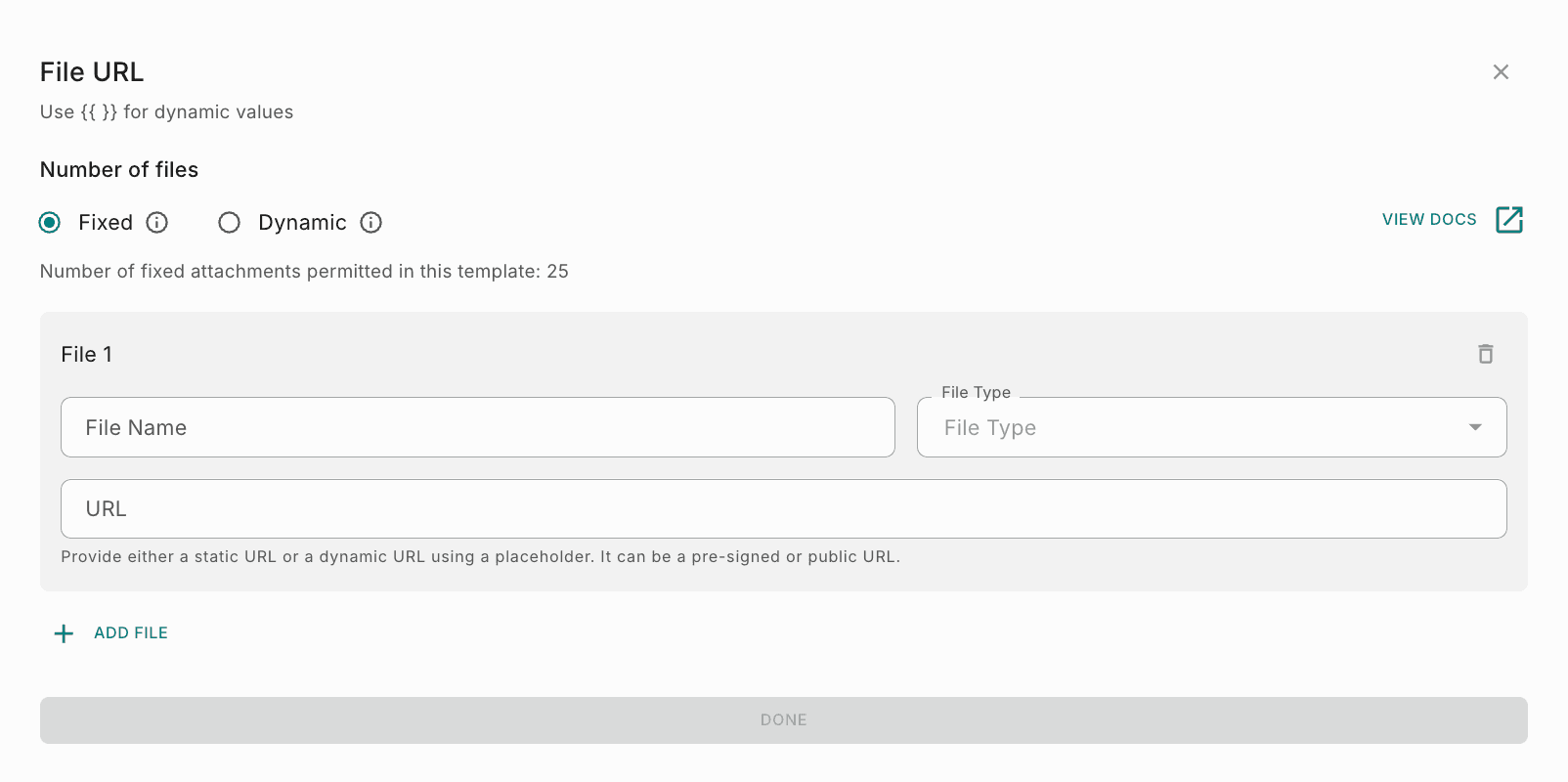
Use File URL to include files that are decided when the notification event is triggered. Click File URL to open the File URL pop-up. Use {{ }} in any field for dynamic values.
In Number of files, choose Fixed or Dynamic. See Number of files: Fixed or Dynamic. For each file, you configure:
- File Name: A static value like
Invoice.pdf(if you are testing manually), or a placeholder like{{attachment.filename}}(if you trigger the notification event through the API). - File Type: Select the file type from the dropdown, or enter a placeholder like
{{attachment.filetype}}. Use MIME types for the file type. - URL: A static URL, or a dynamic URL using a placeholder like
{{attachment.presigned_URL}}. The URL can be either pre-signed or public.
Click Done to save the attachments.
If you use a pre-signed S3 URL, the URL should start downloading the file as soon as it is opened.
Use placeholders when the attachment is dynamic, for example a personalized attachment for each recipient. Such attachments are usually sent through an API call. To send dynamic attachments in the event payload, make sure the data section of the payload has an object called attachment, as shown below.
curl -X POST 'https://api.fyno.io/v1/<WorkspaceID>/event' \
-H 'Authorization: Bearer <API_KEY>' \
-H 'Content-Type: application/json' \
-d '{
    "event": "EmailWithAttachments",
    "to": {
        "email": "xyz@gmail.com"
    },
    "data": {
       "attachment":
        {
            "presigned_URL": "<presigned_URL>",
            "filename": "<attachment_file_name>",
            "filetype": "application/pdf"
       }
    }
}'
The keys inside attachment (presigned_URL, filename and filetype) are only examples. You can name them anything, as long as the keys in your payload match the placeholders you use in the template.
In the above command, replace:
<WorkspaceID>with your Workspace ID.<API_KEY>with your API key.<presigned_URL>with the pre-signed URL of your file.<attachment_file_name>with the name of the attached file.
You cannot use only numeric values as placeholder keys.
Number of files: Fixed or Dynamic
In the File URL pop-up, choose how files are attached in Number of files. You can add up to 25 attachments per template, in either mode.
| Fixed | Dynamic | |
|---|---|---|
| Number of files | Known in advance and the same for every send | Varies per send |
| How you configure it | Add each file (File 1, File 2 and so on) separately | Configure one file mapper that applies to every item in an array |
| Use it when | You send the same static files to all users, such as a brochure or product catalog | Files come from an API response, a loop or a previous step |
In Fixed mode, you configure each file (File 1, File 2 and so on) by specifying its name, file type and URL individually. Click Add File to add another file, or the delete icon to remove one.
| Field | Purpose | How to configure | Example |
|---|---|---|---|
| Number of Files | Defines how many files are attached. | Select Fixed and add each file manually. | Not applicable |
| File Name | The name shown to the user. | Enter a static file name or a placeholder. | invoice.pdf |
| File Type | The file type being sent. It must be a valid MIME type. | Select from the dropdown, or enter a valid value such as image/png or application/pdf. | application/pdf, image/jpeg |
| URL | The file location. | Enter a publicly accessible URL or a valid pre-signed URL. | https://example.com/file.pdf |
For example, if you configure:
| File | File Name | File Type | URL |
|---|---|---|---|
| File 1 | product_catalog.pdf | application/pdf | https://example.com/catalog.pdf |
| File 2 | pricing_sheet.pdf | application/pdf | https://example.com/pricing.pdf |
Both files are always attached, exactly as configured.
- Each file must be configured separately.
- The URL must be publicly accessible or pre-signed.
- The number of files stays the same for every send. If the file count needs to change at send time, use Dynamic mode.